
Pickori

Tutorial

Reducing Input Lag for a Better Gaming Experience

How to cut the delay between pressing a button and seeing it happen onscreen.

That split-second gap between pulling the trigger and seeing it register onscreen isn't your reflexes slipping. It's the TV doing extra work on every frame before it shows you anything, and most of that work is invisible until you turn it off. Getting a responsive setup isn't about buying a fancier TV, it's about knowing which settings quietly add delay and which ones remove it. A few menu changes can shave off more lag than any spec sheet number.

Reading time: 8 minutesBest for: Console and PC gamers who notice sluggish controls on their TV
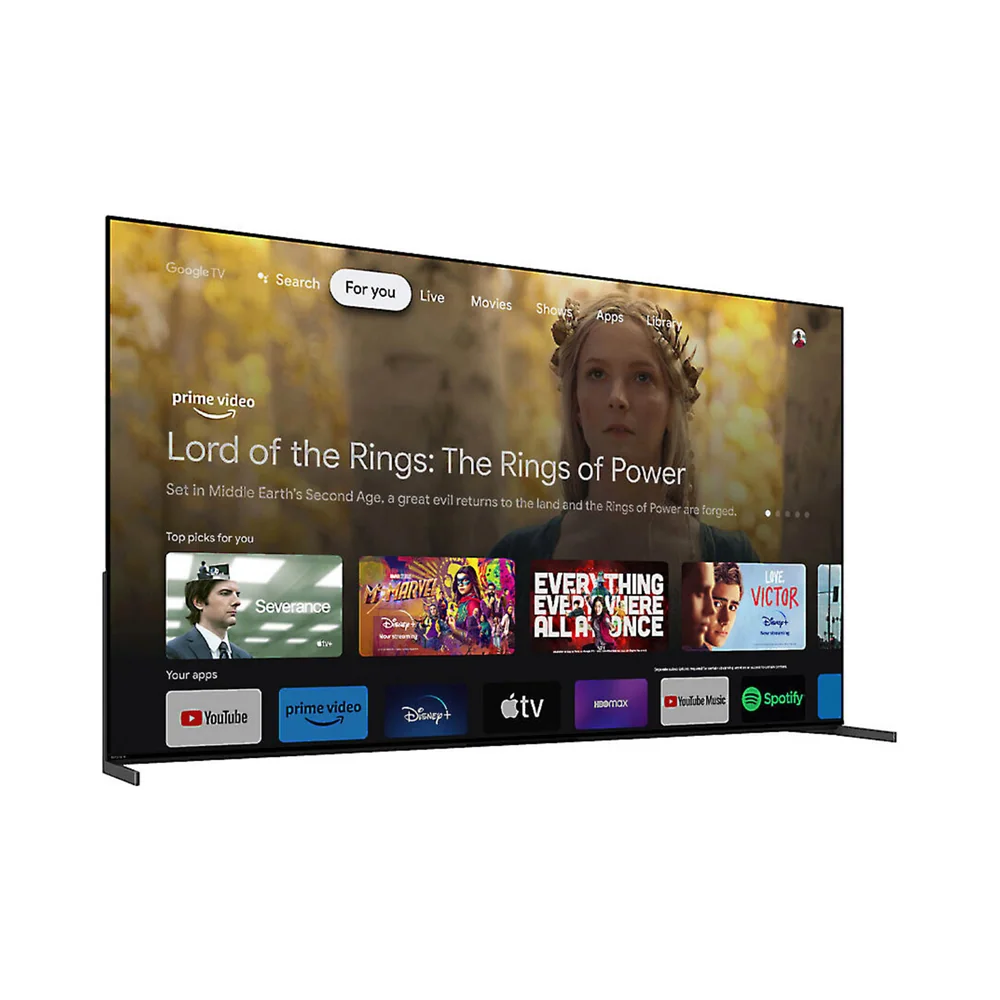
Sony Bravia XR A95L OLED 4K HDR Google TV

What input lag actually means

Input lag is the time between an action on your controller and the moment it shows up on the screen. Every TV processes the incoming picture before displaying it, running it through noise reduction, motion smoothing, and upscaling. That processing takes time, usually measured in milliseconds, but in a fast game those milliseconds are the difference between landing a shot and missing it.

It's separate from refresh rate, which is about how often the picture updates. A TV can have a fast refresh rate and still feel sluggish if its processing pipeline is slow. That's why two TVs with identical refresh rate numbers can feel completely different with a controller in hand.

Turning on game mode

Game mode is a picture setting that strips out most of the extra processing a TV normally applies. Instead of smoothing motion or enhancing detail, it passes the image through with minimal alteration, which cuts input lag significantly, often by more than half compared to a standard picture mode.

The tradeoff is a slightly flatter, less polished image, since some of that processing genuinely improves picture quality in movies and shows. That's fine, because game mode is meant to be switched on for gaming and off for everything else. Most TVs detect a game console automatically now, but it's worth checking the picture menu the first time you plug one in to confirm it actually engaged.

HDMI 2.1 and variable refresh rate

HDMI 2.1 is a newer cable and port standard used for higher-frame-rate gaming, and some compatible TVs and consoles also support variable refresh rate, which lets the TV's refresh rate match the frame rate coming from the console in real time. Without it, mismatched frame rates cause stutter or tearing, where the image looks visibly split during fast movement.

This matters most with current-generation consoles and gaming PCs capable of pushing frame rates past 60 frames per second. If your TV only has HDMI 2.0 ports, you can still game on it, but you won't get the smoother, tear-free motion that a 2.1 port and cable combination allows. Check that both the TV port and the cable itself are rated for 2.1, since an old cable can bottleneck a new port.

Settings that add unwanted lag

Features like motion smoothing (sometimes branded as things like motion interpolation), local dimming refinement, and noise reduction all add processing time. They're often left on by default because they make movies and sports look smoother and cleaner, but in a game they translate directly into extra lag between your input and the result.

Turning these off individually, on top of enabling game mode, can shave off additional milliseconds. It's worth going through the picture settings once when you first set up a console, rather than assuming game mode handles everything automatically, since some TVs leave a few of these features partially active even in that mode.

What this guide helps you understand

Game mode plus a genuine HDMI 2.1 connection removes most of the lag a TV adds on its own, and turning off cosmetic processing features closes the rest of the gap.

Confirm game mode is active for each input, not just enabled globally
Use an HDMI 2.1 rated cable if the console supports higher frame rates
Turn off motion smoothing and noise reduction for gaming inputs

Technique notes

Recheck picture settings after major firmware updates, since some TVs reset game mode preferences

More smart tvs help

As an Amazon Associate I earn from qualifying purchases.

← Back to Smart Tvs