
Pickori

Laptop advice

How to Match a Laptop to Engineering Software

Engineering apps stress laptops in specific ways, so match CPU, RAM, GPU, cooling, and ports to the tools you actually run.

Engineering software can turn a -fast- everyday laptop into a slow, noisy one because the workload is different. CAD, simulation, and coding environments can push sustained CPU load, large memory use, and sometimes GPU acceleration, and thin laptops may throttle, meaning they slow down to avoid overheating. The goal is not maximum specs. It is predictable performance for your classes and projects, plus the ports and screen setup you will use in labs and at home. If you match the laptop to your software mix, you avoid the two common failures: buying too little and fighting slowdowns, or buying a heavy gaming-style machine you hate carrying every day.

Reading time: 9 minutesBest for: Engineering students who need reliable performance for CAD, simulation, coding, and lab setups
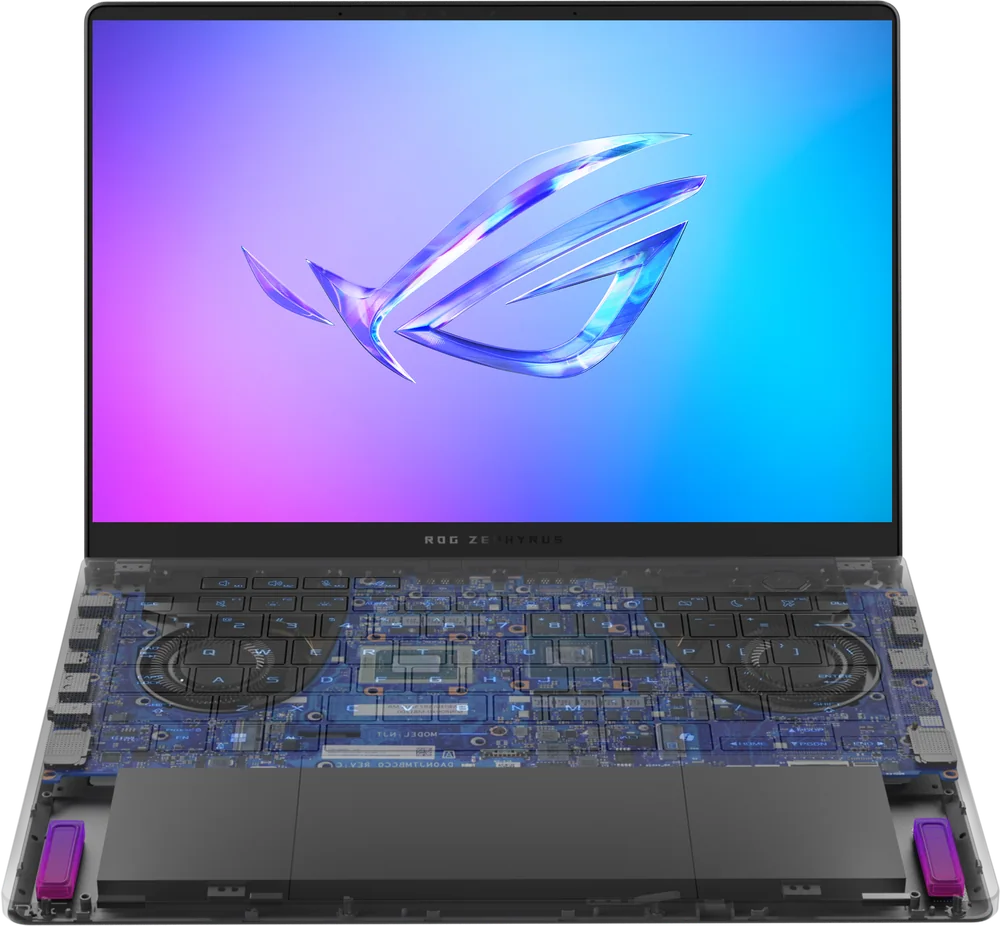
Asus ROG Zephyrus G14

Translate your software into CPU, RAM, and GPU needs

CPU (processor) matters because many engineering tasks are still CPU-driven, especially modeling steps, compiling code, and parts of simulation workflows. A stronger CPU helps with responsiveness and reduces wait times, but what matters most is sustained performance, not just short bursts. If your laptop is thin with limited cooling, it may start fast and then slow down during long runs. GPU (graphics processor) needs depend on whether your tools use hardware acceleration for 3D viewports or compute tasks. Integrated graphics (built into the CPU) can be fine for light CAD and general coursework, but heavier 3D assemblies and certain workflows benefit from a dedicated GPU (a separate graphics chip). The tradeoff is ownership: dedicated GPUs usually mean more heat, more fan noise, and shorter battery life, which you will notice in lecture halls and libraries.

Cooling and sustained performance: why thin laptops can feel inconsistent

Cooling is the hidden spec that decides whether performance stays steady. When a laptop cannot shed heat, it throttles, reducing clock speeds to protect itself. In practice, that means a long export, render, or simulation can take much longer than you expected, even if the laptop looked powerful on paper. If you expect frequent long sessions, look for a chassis designed for sustained loads, not just portability. That often means a performance laptop that is thicker and heavier, with more fan noise under load. The ownership consequence is real: you may prefer a slightly slower but quieter machine for daily carry, then rely on a desktop lab, remote workstation, or external monitor setup for heavy work.

RAM and storage: the difference between -runs- and -runs well-

RAM (memory) is where engineering laptops often fall short. Large assemblies, multiple apps, and browser research can fill memory quickly. When RAM runs out, the laptop uses storage as overflow, which feels like stutter when you rotate models or switch windows. More RAM does not just help peak performance. It keeps the laptop smooth when your project grows. Storage (SSD) affects load times for big project files and datasets. SSD speed is noticeable when opening large assemblies, indexing code projects, or moving files between drives. Storage size matters too because engineering files can balloon, and running near full makes file management stressful. If your laptop supports a second drive or easy upgrades, that can extend its useful life through later coursework.

Ports, displays, and real setups in labs and dorms

Engineering students often connect to more stuff: external monitors, wired networks, lab instruments, and USB-A accessories. Ignoring ports is how you end up with a fragile chain of adapters. If you present in classrooms, check for the display output you will actually use. If you work with cameras or data loggers, confirm you have the right USB ports without relying on a hub every day. Display quality affects long problem sets and CAD work. A larger screen can reduce zooming and panning, but it also adds weight. Brightness matters if you work near windows or under harsh lab lighting. If you plan to use an external monitor at home, you can prioritize portability on the laptop screen and invest in a comfortable desk display for long sessions.

What this guide helps you understand

This guide should make it easier to map your engineering apps to the performance and connectivity that keep projects moving without carrying an unnecessarily heavy laptop.

List the exact engineering apps you will use and note whether they rely on 3D graphics, long simulations, or heavy multitasking, then choose CPU, RAM, and GPU accordingly.
Prioritize cooling and sustained performance if you expect long runs, not just quick homework tasks.
Confirm you have the ports you need for monitors, lab gear, and wired networking without depending on a pile of adapters.

Technique notes

If you buy a dedicated GPU for occasional use, expect more fan noise and less battery even during light tasks because the system is built around higher heat output.
A laptop that feels fine for the first semester can struggle later when projects get larger, so plan RAM and storage with growth in mind.

Safety note: Keep vents clear during long simulations and avoid using the laptop on soft surfaces that trap heat.

More from Laptops

As an Amazon Associate I earn from qualifying purchases.

← Back to Laptops