

Pickori's Take
- The Surface Pro 11 OLED is still the 13-inch Windows detachable most people should buy. At $1,199.99, it's a smarter purchase than paying much more for the 13-inch Surface Pro 12th Edition, whose premium makes sense only if you need its substantially stronger integrated graphics or simply want the newest generation. What matters most is the form: this is the right computer for someone who genuinely values tablet mode, touch, pen input, or a detachable keyboard. A clamshell is calmer on a lap and usually the better pure laptop.
- The case for owning one shows up every day: a bright, accurate OLED screen, a webcam that outclasses most laptops, battery life that passed 12 hours in a continuous browsing rundown, and the freedom to pull off the keyboard and keep running full Windows on a 1.97-pound slate.
- The Snapdragon X Elite is an Arm processor, which means it speaks a different instruction language from the Intel and AMD chips in traditional Windows PCs. Apps built for Arm run directly. Windows can translate many older programs, but some specialist software, drivers, plug-ins, VPN or security tools, virtual machines, and games with kernel-level anti-cheat may not run or may behave less predictably. Check your essentials before you buy.
- The keyboard is sold separately, and most buyers can't do without it. The Surface Pro Keyboard costs $169.99, which brings a normal laptop-style setup to about $1,370 before you add the separately sold Surface Slim Pen 2. The keyboard is genuinely optional only if you'll use the Surface mainly as a tablet or already have another keyboard setup.
- Pass on it if you type on your lap all day, want built-in USB-A, HDMI, or a headphone jack without adapters, or expect real gaming performance. The integrated Adreno graphics handle light games and everyday display work, not demanding titles or professional 3D work.
A screen that borrows a keyboard, not a laptop that lost one
Nearly every Windows laptop starts with a keyboard and adds a screen. The Surface Pro 11 starts with the screen and treats the keyboard as a guest. That one choice explains almost everything good and everything mildly maddening about owning one. The reviewed model, ZIA-00018, is the whole computer: a 13-inch OLED touchscreen, a Snapdragon X Elite processor, 16GB of memory, and a 512GB SSD, all inside a 1.97-pound slab 0.37 inches thick with a kickstand hinged into the back. That slab is what $1,199.99 gets you. The keyboard that appears in every product photo is a separate purchase, and so is the pen. Keep that in mind as you read the rest of this review, because Microsoft prices the Surface like a tablet and sells it like a laptop, and your real cost depends on which of those you actually need.
The processor is where this machine differs most from the Windows PCs most people have used. Snapdragon chips are built on Arm, a different instruction architecture from the Intel and AMD processors in traditional Windows computers. Put simply, the chip understands a different set of basic commands, so software either has to be written for it or translated on the fly. Apps compiled for Arm run directly, and they're the smoothest and most predictable things you can run here. For older x86 programs, Windows uses a translation layer called Prism. It handles a large share of them successfully and is far more capable than anything earlier Windows-on-Arm machines had. What's left is a short list of specific risks, not a general unreliability. Software that depends on special drivers, plug-ins, virtual machines, low-level security or VPN tools, and games with kernel-level anti-cheat may refuse to install or behave unpredictably. If your day lives in a browser and mainstream apps, you may never notice the architecture at all. If your job depends on one irreplaceable niche program, confirm it runs here before you do anything else.
The X1E-80-100 in this configuration is a 12-core chip rated up to 3.4GHz, with two cores able to boost to 4.0GHz for short bursts such as opening an app or recalculating a spreadsheet. It's a strong productivity processor in a chassis this thin, and later sections cover where it slows down under long, heavy loads and why its integrated Adreno graphics aren't a reason to buy the tablet. Alongside it sits a Qualcomm Hexagon NPU rated at 45 TOPS, or trillions of operations per second. An NPU is a dedicated processor for supported on-device AI features, including the Copilot+ tools Windows enables on qualifying hardware, so those tasks can run locally without loading the main processor. It helps where software calls on it and does nothing where software doesn't. Count it as a bonus. The screen, the battery, the tablet form, and whether your apps run well are what should decide the purchase.
Timing is a big part of the value argument. Microsoft introduced this consumer Snapdragon model in 2024, and the 13-inch Surface Pro 12th Edition replaced it in June 2026. So this is the previous generation, and that's exactly why the price is worth attention: $1,199.99 buys the top processor and display tier of the last generation for far less than its successor starts at. The Pro 11 suits someone who wants a premium Windows tablet first and a capable laptop second. That could be a student annotating lecture slides, a consultant moving between client desks and airport gates, an artist who wants real Windows creative apps under a pen, or a manager who still takes meeting notes by hand. If that sounds like your week, the rest of this review explains how well the Pro 11 fits it. If you mainly want a laptop that stays a laptop, the same pages explain why a clamshell will make you happier.
The four things it does better than it has any right to
Start with the display, because it's the strongest reason to pick this configuration over the cheaper one. It's a 13-inch PixelSense Flow OLED at 2880 by 1920 and 267 pixels per inch, in a 3:2 shape that's noticeably taller than a widescreen laptop panel. You see more of a document or web page before you scroll, and turned to portrait, a PDF finally looks like a sheet of paper. OLED pixels produce their own light and switch off completely for black, which gives it contrast no LCD can match in dark scenes, dark-mode apps, and HDR video. The refresh rate adjusts on its own up to 120Hz, so scrolling looks fluid and ink seems to follow the pen tip closely. Microsoft rates the panel at 600 nits for standard content and 900 nits for HDR highlights. Published measurements came in at 564 nits in SDR and 747 nits with HDR content, a bit under the claims but plenty for a bright room, along with broad color volume and accurate color. For reading, streaming, sketching, and judging photos, you'll notice this screen every day, not just when you first open the box.
Next is the trick no clamshell can manage. Pop off the keyboard and you're holding full Windows 11, with your real desktop software, in a 1.97-pound slate measuring 11.3 by 8.2 inches. That changes where a computer can go. It becomes a reading pad on the couch, a legal pad in a standing meeting, a screen you slide across the table so a client can see the draft, or a full desktop on the kitchen counter held up by its own kickstand while you follow a recipe. The kickstand needs only a flat surface, so on a crowded café table you can leave the keyboard in your bag and just watch or read. Lots of convertible laptops fold back into something tablet-shaped. Very few turn into a tablet you'd want to hold for an hour.
Battery life is the quieter strength, and over months of ownership it may matter most. Microsoft rates the Pro 11 for up to 14 hours of local video playback and up to 10 hours of active web use. Those are the company's best-case figures, not a forecast for a mixed day. The more useful number comes from a continuous web-browsing rundown at 150 nits, a moderate indoor brightness, which lasted 12 hours and 10 minutes. A real day with a brighter screen, a few video calls, and heavier apps will come in lower. Even so, a full workday of documents, browsing, and email without hunting for an outlet is a reasonable expectation. For students and frequent travelers, not having to camp by the wall socket at the gate or in the lecture hall is worth more than any benchmark gap.
It's also unusually good at making you look and sound professional. The front-facing 1440p Surface Studio camera is among the best on any portable computer, and it includes the infrared sensor for Windows Hello, so you log in with a glance instead of a password. Dual far-field studio microphones pick up your voice clearly from normal sitting distance. The dual 2W Dolby Atmos speakers sound clear and fuller than you'd expect from something this thin, but they don't get especially loud, so a noisy room still calls for headphones. A 10MP rear camera is there for snapping documents and whiteboards. Wi-Fi 7 and Bluetooth 5.4 mean the wireless hardware won't hold you back on a fast network. For anyone who spends a good share of the week on calls, the camera and microphones are a practical reason to choose this over many conventional laptops that cost the same.
What the Snapdragon X Elite can and can't carry
Speed is not where this tablet falls short. The Snapdragon X Elite is a strong productivity processor that fits in a body under 0.4 inches thick, and published Geekbench 6 results of about 2,813 single-core and 14,432 multi-core put it well past what documents, browsers, and video calls ask for. Its limits come from somewhere else. Long, heavy jobs settle below the opening burst once heat builds up. The integrated graphics are modest. Not every Windows program is built for this chip either. The rows below show where each of those limits starts to matter, and where it never comes up at all.
| Workload | Outlook | What to expect |
|---|---|---|
| Browser and Office work | Excellent, and the battery goes the distance | The Surface Pro 11 was built around this kind of work, and the X Elite handles it without strain. A crowded browser, email, spreadsheets, and web apps leave plenty of processor in reserve. The 3:2 screen matters more than its shape suggests, because it shows more of a page top to bottom than the wider panels on most laptops. That adds up over a day spent in Word or a long PDF. The dynamic refresh rate runs up to 120Hz while you scroll or ink, then drops when nothing on screen is moving to save power. Microsoft rates the tablet for up to 10 hours of active web use and 14 hours of local video playback. Those are Microsoft's figures, not predictions for mixed use. A more useful reference is an independent continuous browsing rundown at a fairly dim 150 nits, which lasted 12 hours and 10 minutes. A brighter screen or heavier apps will cut into that, but a full workday of documents and browsing away from the charger is a reasonable expectation. The fan measured around 25 dBA in light use, quiet enough to vanish into ordinary room noise. Compatibility rarely causes trouble here, though Office add-ins your employer requires are still worth confirming. |
| Heavy multitasking | Strong, inside a thermal ceiling and a fixed 16GB | Run a packed browser, several Office files, a chat client, and a video call together, and the X Elite keeps up without complaint. The ceiling appears when one demanding CPU task keeps going. In one sustained-load sequence, repeated heavy work settled roughly 20 percent below the first result as the thin chassis managed its heat, and the fan rose toward 39 dBA. That's noticeable in a quiet room but not intrusive. Memory is the other fixed boundary. The 16GB of LPDDR5x is soldered to the board, so the amount you buy is the amount you keep for the life of the tablet. That covers most students and professionals. If you already know your work pushes past 16GB, this configuration has no way to grow with you. |
| Video calls | Unusually good for a portable computer | The 1440p Surface Studio front camera is one of the most practical reasons to pick this tablet over a typical laptop. It is noticeably sharper than the webcams most portables ship with, and because the kickstand sets the angle, you choose how the camera frames you. On a clamshell, the hinge makes that choice for you. Dual far-field microphones pick up your voice from across a desk, and the infrared camera handles Windows Hello face login. The speakers sound clear and full for a tablet but don't get especially loud. They work well for a call in a quiet room, while a busy café still calls for a headset. That headset needs USB-C or an adapter, because there is no headphone jack. The 10MP rear camera earns its place by capturing whiteboards and paper documents, which fits the note-taking role. |
| Photo work | A superb screen for it, once your editor checks out | Here the OLED panel does most of the work. Published measurements put it at 564 nits in SDR and 747 nits with HDR content, short of Microsoft's 600- and 900-nit ratings but still bright, with broad color volume and accurate color. At 2880 by 1920 and 267 pixels per inch, fine detail holds up. Add the separately sold Surface Slim Pen 2, and masking and retouching feel far more natural than dragging a cursor across a touchpad. The processor handles typical edits comfortably. Check three things before you commit. First, confirm that your editor and its plug-ins have native versions for this processor. Second, consider how heavily your workflow leans on GPU-accelerated filters, which the modest Adreno graphics won't speed up much. Third, see whether you notice the faint digitizer pattern some people pick up on white canvases. Raw libraries will fill 512GB quickly, but the two USB4 ports make a fast external drive painless. Storage measurements on a different-capacity sibling reached roughly 2,885 MB/s reads and 2,127 MB/s writes, which suggests the internal SSD is rarely the bottleneck. |
| Video editing | Light edits yes, long timelines no | Short projects, simple cuts, and social clips are well within reach, and the OLED screen makes reviewing footage a pleasure. Longer, denser timelines run into every constraint this design has. Sustained exports hit the thermal settling described above. Effects-heavy work leans on integrated graphics that are adequate for driving the display but weak for professional workloads. A fixed 16GB of memory and a 512GB drive leave little room for large projects. Editing software support also varies on this platform, so confirm that your editor runs well before you plan around it. Anyone who edits video regularly should look at the 13-inch Surface Pro 12th Edition, where the graphics gains actually count, or at a laptop with a stronger GPU. |
| Games | Casual and older titles only | The Adreno GPU handles lighter games and everyday display work, but it struggles with demanding titles. That's before you add the cost of translating games written for traditional Intel and AMD Windows PCs. Multiplayer games that rely on kernel-level anti-cheat may refuse to launch at all. Under gaming loads, fan noise approached 39 dBA in published measurements. Puzzle games, older titles, and casual play are realistic. A modern graphics-heavy library is not. The newer 13-inch Surface Pro 12th Edition has meaningfully stronger integrated graphics, but neither generation is a gaming machine, and buying either one as a gaming machine will disappoint you. |
| Legacy and specialist software | Clear every essential tool before buying | This is the one row where ten minutes of research can save you a return. Apps built for Arm run directly on the chip and give the smoothest, most predictable results. For software written for Intel and AMD processors, Microsoft's Prism translation layer converts the instructions as the program runs. It handles many older programs successfully and is markedly better than earlier Windows-on-Arm attempts. Translated apps can still feel less fluid, though, and some software can't be translated at all. The usual trouble spots are printer and scanner drivers, audio and creative plug-ins, VPN clients, security agents your employer requires, virtual machines, and games with kernel-level anti-cheat. List every program you can't work without and check each vendor's Arm support. If everything clears, you'll stop thinking about the architecture within a week. If one essential tool fails, nothing else on the spec sheet makes up for it. |
For the work people actually buy a Surface to do, the X Elite has speed to spare. The same efficiency that keeps the fan near silent while you write is what makes a 12-hour browsing result possible, and that trade suits this tablet well. The real caveat is endurance under a heavy load. A 1.97-pound slate has far less room for cooling than a thicker laptop, so long exports and large compiles finish slower than the first benchmark run suggests. That's a fair price for something you can hold in one hand, and it's the line between a productivity tablet and a portable workstation. This is clearly the former.
Choosing between the two Surface Pro 11 configurations comes down mostly to the screen. The cheaper version pairs a ten-core Snapdragon X Plus with an LCD. It keeps the same 13-inch, 2880 by 1920, 120Hz format, the same chassis, ports, cameras, and wireless, and it's still rated for 600 nits in SDR. What it gives up is contrast: true blacks, richer HDR, and the depth that makes photos, video, and even dark-mode documents look better on OLED. The X Elite's two extra cores pay off mainly in sustained multicore work, so someone who only wants a light Office tablet won't feel much processor difference day to day. The OLED difference shows every time the screen turns on. For anyone who reads, draws, edits photos, or watches much video on the device, the X Elite and OLED model reviewed here is the better long-term purchase.
The 45-TOPS NPU deserves one plain explanation and no more. It's a dedicated processor that runs supported on-device AI features in Windows efficiently, so they don't tie up the main CPU or GPU. It helps when a feature calls on it, but it's no reason to choose this tablet over a laptop that better fits your work. Two more ordinary details carry more weight over years of ownership. The 16GB of memory is permanent, so buy this configuration only if 16GB covers your plans. The 512GB SSD sits in a removable M.2 2230 slot, and Microsoft publishes service guidance for supported repairs. That gives storage an upgrade path that's rare in a tablet this thin. Memory, though, is the part of the decision you live with for good.


What it's like to actually work on one
Browser work, email, documents, spreadsheets, and slide decks don't come close to challenging it. Everyday responsiveness depends mostly on how fast a single core finishes short tasks, and the X Elite is strong there, with a Geekbench 6 single-core result around 2,813 in one evaluation. A large spreadsheet opens quickly, dozens of tabs stay responsive, and jumping between a presentation and a chat window doesn't leave you waiting. These tasks also depend least on translation, because the major browsers and office suites have native Arm versions. If your day looks like this, performance won't be why you love or regret the Pro 11. The screen, battery, and tablet form will be.
Heavy multitasking starts strong and then eases off. The same evaluation recorded a multi-core score around 14,432, an impressive result for a tablet with a fan, and the chip hits that level in short runs. Under repeated heavy CPU work, though, one sustained-load sequence settled about 20 percent below the first result, which is what happens when a thin chassis has to manage heat over a long session. Measured fan noise was around 25 dBA in light use, effectively silent in most rooms, and close to 39 dBA under heavy load, noticeable in a quiet library but not annoying. The 16GB of LPDDR5x memory handles a crowded browser, several office apps, and a video call together without complaint. It's soldered, though, so treat 16GB as permanent. Storage won't be the bottleneck. A drive from the same family, in a different capacity from this 512GB model, measured roughly 2,885 MB/s sequential reads and 2,127 MB/s writes, fast Gen4 performance that keeps app launches and large file copies quick.
On video calls, the Pro 11 beats most of its competition outright. The 1440p camera and far-field microphones do most of the work, and the kickstand sets the camera at a more natural, flattering height than many laptop lids that aim up at your chin. Photo editing is a strong fit too. The accurate OLED helps you judge color, the pen makes masking and retouching feel like working by hand, and the CPU handles typical camera files comfortably. Just make sure your editor and every plug-in you rely on run on Arm first. Video editing is where the limits appear. Short, simple cuts and exports are fine, but long exports depend on sustained performance that tapers over time, and the integrated Adreno GPU offers little extra muscle for effects-heavy timelines. If you edit video every week, look hard at the 13-inch Surface Pro 12th Edition, since its main improvement targets exactly this kind of work.
Gaming is the clearest mismatch. The Adreno graphics are fine for everyday display work and lighter or older games, but they struggle with demanding titles and professional 3D work. Games that use kernel-level anti-cheat may not run at all, however well the hardware could otherwise cope. Think of it as a machine for casual games, not a portable gaming PC. Legacy and specialist software needs checking, not general worry. Before you buy, look up Arm support for everything your work actually depends on: printer and scanner drivers, lab instruments or audio interfaces, your employer's VPN and security client, virtualization tools, and plug-ins for creative apps. Translated programs often work, sometimes a little less smoothly, and a native version is always better when one exists. If everything on your list checks out, you'll stop thinking about the architecture within a week. If one essential item fails, even a great screen won't make up for it.
The compromises, and who they actually affect
The biggest trade-off depends on where you'll use it. On a desk, a tray table, or a kitchen counter, the kickstand and keyboard work very well, and you can set the screen at almost any angle. On your lap, the design becomes awkward. The kickstand needs room behind the tablet, the keyboard is a thin cover instead of a rigid base, and the whole setup is wobblier and takes more space than a clamshell. Half an hour of typing on the couch is fine. A full workday of typing on your lap is the wrong job for this computer, and anyone whose office is a sofa or a train seat without a table will be better off with a clamshell or a hinged convertible. That isn't bad engineering on Microsoft's part. It's the cost of building a tablet first.
Ports are the second thing to plan for. You get two USB-C ports at USB4 speeds that handle charging, data, and DisplayPort 1.4a video, plus Surface Connect for Microsoft's chargers and docks and the magnetic connector for the keyboard. There's no USB-A, no HDMI, and no headphone jack. The USB4 ports are fast and flexible, and at a desk one cable can carry both a monitor signal and power. Elsewhere, you'll need adapters. Wired headphones require a USB-C adapter or USB-C headphones, conference-room projectors often expect HDMI, and older flash drives and wired mice need USB-A. A small hub for your bag and a dock for a regular desk solve most of it, and if your headphones, mouse, and storage are already wireless, you'll rarely notice what's missing.
The OLED screen has one subtle quirk. Some people can make out a faint digitizer or screen-door pattern on light backgrounds, such as a white document or a bright web page. Many others never see it, and sensitivity varies enough that it isn't a universal flaw. If you can find one in a store, open a blank white page, sit at your usual working distance, and look for a minute. If nothing stands out, it's very unlikely to bother you at home. If you're the kind of person who notices pixel structure on phones and monitors, check before you buy.
Serviceability is a mixed story. The 16GB of memory is soldered, so what you buy is what you'll have for the life of the tablet. That's comfortable for browser, office, and note-taking work, but if you already push memory hard, plan around that limit instead of counting on an upgrade later. Storage is better news. The SSD is a removable M.2 2230 Gen4 drive, and Microsoft publishes service guidance for supported repairs. That makes 512GB much less of a lifetime commitment than it would be on a sealed tablet: if you outgrow it, or the drive fails after the warranty ends, it can be replaced. Few detachables let you do that, and it's a real long-term advantage.
Snapdragon X Plus with LCD, or X Elite with OLED?
The cheaper Surface Pro 11 keeps almost everything that shapes daily ownership: the same 13-inch 2880 by 1920 screen size and resolution with its 3:2 shape and 120Hz refresh rate, the same chassis and kickstand, the same two USB4 ports, the same cameras, Wi-Fi 7, and the same detachable design. Only two things change. The processor drops from the 12-core Snapdragon X Elite to the 10-core Snapdragon X Plus, and the display switches from OLED to LCD. The LCD is still rated for 600 nits in standard content, so it isn't dim, but its contrast is far lower.
Of those two changes, the screen is the one you'll notice every time you use it. OLED's true blacks make dark movie scenes, HDR video, dark-mode apps, and late-night pen work look deeper and cleaner, while an LCD's backlight lifts black toward charcoal gray. The processor difference is harder to feel. The X Elite's extra cores help with sustained multicore work such as long exports and big batch jobs, and they do almost nothing for browsing, documents, and email. So the real choice is the screen, and the faster chip comes with it.
At $1,199.99, Pickori recommends the OLED and X Elite model. The display is one of the main reasons to buy a Surface Pro at all, and this configuration has the best one the Pro 11 offers. The X Plus with LCD is the sensible choice if you can find it for meaningfully less and your work is mostly documents and browsing, with little interest in movies, HDR, or color-critical photos. When you compare prices, match the memory and storage. The configurations don't always line up, and a lower price sometimes reflects a smaller drive or less memory rather than just a different screen.
Surface Pro 11, or the 13-inch Surface Pro 12th Edition?
The 13-inch Surface Pro 12th Edition, released in June 2026, is the direct successor, and it refines the design rather than replacing it. The chassis, display options, weight, two USB4 ports, Surface Connect, removable M.2 2230 storage, Wi-Fi 7, and accessory approach are all broadly the same. The difference is inside: Snapdragon X2 Plus or X2 Elite processors. In several independent CPU comparisons, the X2 Elite version beat this X Elite model by only about 2 to 6 percent depending on the task. In practice, a ten-minute processing job would finish roughly 10 to 35 seconds sooner. You won't feel that in a browser or a spreadsheet. The graphics gain is much bigger, roughly a third faster in representative results and more in some graphics benchmarks, and that's the part of the upgrade you could actually notice.
That graphics improvement is worth paying for if your work leans on the GPU: effects-heavy video editing, GPU-accelerated creative apps, or light 3D work within what integrated graphics can handle. The newer model also makes sense if you want the longest support life from the latest platform, or you simply want the current generation and the price gap doesn't bother you. Keep expectations in check, though. A faster integrated GPU still doesn't make a gaming laptop, and neither Surface Pro is the right buy for demanding games. For everyone else, the successor costs much more while delivering almost the same experience for documents, calls, notes, and browsing, and the Pro 11 remains the better use of your money.
Watch out for the naming. The 12-inch Surface Pro is a separate, compact line, not the successor to this 13-inch model. The first 12-inch edition launched in 2025, and Microsoft announced a second 12-inch edition on September 23, 2026, for release on October 13, 2026. It's smaller and lighter, with a different approach to performance and ports, so if you want a more portable Surface, that's a separate decision. The 12th Edition label is a generation number, not a screen size, and here it refers to the 13-inch successor discussed above.
The keyboard, the Flex Keyboard, and the pen: what to actually buy
For most buyers, the standard Surface Pro Keyboard isn't really optional, whatever the product page suggests. It costs $169.99, which brings the tablet to about $1,370 before any pen, and that's the number to use when judging the Pro 11 as a laptop replacement. At that price you're competing with premium laptops, not budget tablets, and the Surface holds up only because it also becomes a genuinely good tablet whenever you want one. The keyboard types comfortably for a detachable, and the haptic touchpad version is responsive. It's truly optional only if you'll use the Surface mainly as a tablet or you already have a Bluetooth keyboard and mouse at the desk where you do your typing.
The Surface Pro Flex Keyboard costs considerably more, and it's worth it only for a specific setup. It keeps working after you detach it, and it charges while attached to the tablet. That means you can raise the screen to eye level on a stand, or push it to the back of a deep desk, while the keyboard stays wherever your hands are comfortable. For people who sit at the same desk for long stretches, or who want a more upright screen on a cramped tray table, that's a real ergonomic improvement. If you don't picture yourself working that way, the standard keyboard does everything else you need, and the money is better spent elsewhere.
The Surface Slim Pen 2 is also sold separately, and whether you need it depends on how you'll use the screen. For note takers, students marking up readings and slides, and artists, it's the accessory that turns the Pro 11 into something no laptop can copy, and the 120Hz OLED makes handwriting and sketching look fluid. If you never plan to write or draw on the glass, skip it. One more item belongs in the budget even though Microsoft doesn't sell it with the Surface: a USB-C hub or adapter for HDMI, USB-A, or wired headphones, if any part of your setup still relies on them.
Who this product fits
The student or note taker who wants one device for everything
This is the Pro 11's best use. Office, a research browser with far too many tabs, and a course portal barely register on the X Elite. Folding the keyboard back to write straight onto lecture slides or a meeting agenda is something no clamshell can do. Because it's full Windows, the notes app you use flat on a desk is the same program you use at a keyboard, not a cut-down mobile version with missing features. The OLED makes long reading sessions comfortable, and battery life that passed 12 hours of continuous browsing covers a campus day. Buy the Slim Pen 2 in this case. The pen is the reason to choose a Surface over a laptop, and skipping it defeats the purpose.
The consultant or manager who lives on video calls
The 1440p webcam and far-field microphones will make you look and sound better than most people on the call, without a ring light or a headset. When half your meetings happen on a screen, that counts for something professionally. The 16GB of memory keeps a call, a shared deck, a spreadsheet, and a stack of tabs open without complaint. Travel is where this buyer needs a plan. The kickstand works well on a hotel desk or tray table and poorly on your knees at an airport gate. And because there's no HDMI port, a small USB-C hub belongs in the bag for client conference rooms.
The photographer or video editor
Photo work suits this tablet better than its size suggests. The OLED's wide, accurate color and the pen's precision make culling and retouching feel natural, especially if your editor has a native Arm build. Check that first, because a translated editor can feel sluggish in exactly the moments you notice. Video is where the limits show. Short edits and quick exports go fine, but long renders run into the roughly 20 percent sustained-performance drop and a fan approaching 39 dBA, and effects-heavy timelines lean on a GPU that wasn't built for them. If video is a regular part of your week, the 13-inch Surface Pro 12th Edition's stronger graphics justify its higher price. If video is your main job, a laptop with a dedicated graphics chip is the honest answer.
The gamer or the user with specialist Windows software
This buyer is the most likely to end up returning it. Lighter games run on the Adreno graphics, demanding titles run poorly, and games protected by kernel-level anti-cheat may not launch at all. Specialist software is the quieter risk: accounting packages tied to hardware keys, engineering plug-ins, corporate VPN or endpoint-security agents, and anything that runs inside a virtual machine. Some of it works perfectly and some doesn't, and you can only find out which by asking the vendor or your IT department before you order. If any essential answer comes back uncertain, an Intel or AMD Windows machine is the safer purchase, however good this screen looks.
What else to compare
The first alternative is inside the Surface Pro 11 lineup itself. The cheaper Snapdragon X Plus version keeps the same chassis, 2880 by 1920 120Hz resolution, ports, cameras, and detachable design, but uses a ten-core processor instead of the twelve-core X Elite and an LCD instead of the OLED. The processor gap shows up mainly in long multicore jobs and hardly at all in browsing or documents. The screen gap is visible every day. The LCD is still rated for 600-nit SDR brightness, but its contrast is far lower, and you'll see the difference in dark photos, films, and dark-mode apps. At $1,199.99, the OLED is the upgrade most buyers should pay for, and the faster chip is a welcome extra. The other alternatives each solve one specific problem. The 13-inch Surface Pro 12th Edition is for graphics-heavy work or buyers who want the newest platform. The separate 12-inch Surface Pro line is for smaller bags and hands. A clamshell or hinged convertible is for people who do most of their typing on their lap.
 Microsoft Surface Pro 12-inchA smaller, lighter Surface for buyers who prize tablet portability over the Pro 11's larger OLED workspace and stronger multicore performance
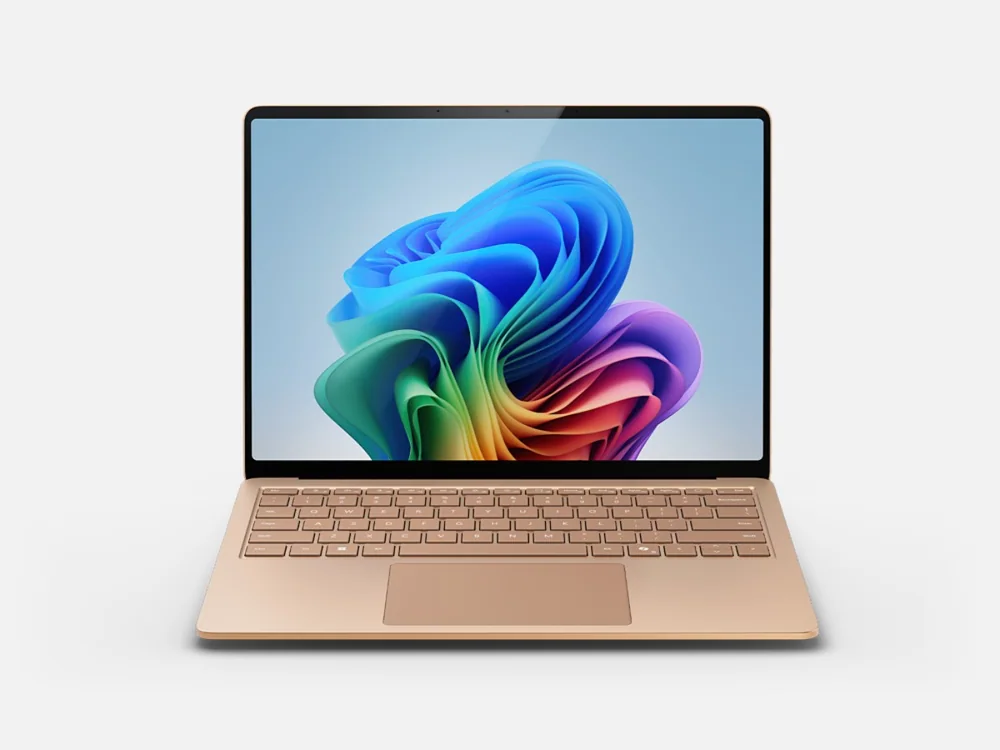 Microsoft Surface Laptop 7A better choice for long typing sessions and actual lap use when tablet mode and pen input are secondary
 HP OmniBook X Flip 14A conventional hinged convertible for buyers who want touch and pen flexibility without balancing a kickstand and detachable keyboard
Microsoft Surface Pro 11 FAQ
Does the Surface Pro 11 come with a keyboard?
No. The reviewed model is device only, and the keyboard and pen are separate purchases. The standard Surface Pro Keyboard costs $169.99, which brings a laptop-ready setup to about $1,370 before a Surface Slim Pen 2. Skip the keyboard only if you'll use the Surface mainly as a tablet or already have a Bluetooth keyboard you like.
Should I buy the Surface Pro 11 or the Surface Pro 13-inch 12th Edition?
Most people should buy the Pro 11. In several independent CPU comparisons the newer model was only about 2 to 6 percent faster, which you won't feel in documents or browsing. Its integrated graphics gain of roughly a third is real, so pay for the 12th Edition if you edit video, rely on GPU-heavy creative apps, or want the longest support runway.
Is the 12-inch Surface Pro the newer version of this model?
No. The 12-inch Surface Pro is a separate, smaller branch that launched in 2025, with its own performance and port strategy, and its second edition is due October 13, 2026. The direct successor to this 13-inch Pro 11 is the 13-inch Surface Pro 12th Edition. In Surface names, the edition number describes the generation, not the screen size.
Will my apps work on the Surface Pro 11?
Most mainstream apps will. Browsers, office suites, and anything with a native Arm version run smoothly, and Windows translates many older x86 programs. The risk is with software that depends on special drivers, plug-ins, VPN or security tools, virtual machines, or kernel-level anti-cheat. List the few programs you can't work without and confirm Arm support for each before you order.
Is the Snapdragon X Elite and OLED model worth it over the X Plus and LCD version?
For most buyers, yes, and mostly because of the screen. The OLED's contrast is far better than the LCD's, which shows every day in photos, video, and dark-mode apps. The X Elite's extra cores help with long, heavy jobs but barely change browsing and documents. If the display matters less to you and you rarely push the processor, the X Plus version is a sensible way to save.
Can the Surface Pro 11 play games?
It handles lighter games, but it isn't a gaming machine. The integrated Adreno graphics struggle in demanding titles, and some popular games with kernel-level anti-cheat may not run on Windows on Arm at all. The 12th Edition's stronger graphics narrow that gap without closing it. If gaming is a priority, buy a laptop with a dedicated graphics card.
How long does the Surface Pro 11 battery really last?
Longer than most Windows tablets. Microsoft rates it for up to 14 hours of local video and up to 10 hours of active web use, and a continuous browsing rundown at a moderate 150 nits lasted 12 hours and 10 minutes. Higher brightness and heavy workloads will shorten that, but a full workday away from an outlet is realistic.
Can I upgrade the Surface Pro 11's storage or memory?
Storage, yes. Memory, no. The 512GB SSD is removable and uses the compact M.2 2230 size, so any replacement must match that format. The 16GB of LPDDR5x is soldered, which makes it permanent, so factor that in if your workloads are growing.
Sources and research notes
Specifications come from manufacturer documentation. Measured results are attributed to independent evaluations.
- Microsoft Surface Pro Snapdragon technical specifications
- Microsoft Surface Pro 11th Edition features
- Microsoft Surface Pro family comparison
- Microsoft Surface Pro 12-inch 2nd Edition announcement
- RTINGS Microsoft Surface Pro 11th Edition review
- Tom's Guide Microsoft Surface Pro 11 review
- Notebookcheck Microsoft Surface Pro OLED review
- Ars Technica Surface Pro 11 and Laptop 7 review
- Notebookcheck Surface Pro 13-inch 12th Edition review
Buy it for what happens when the keyboard comes off
The Surface Pro 11 is now the older 13-inch model, and for most buyers that helps it. Its successor mainly added graphics speed. Everything that makes a Surface worth owning carried over unchanged: the OLED, the webcam, the battery life, and a full Windows PC that weighs under two pounds once you unclip the keyboard. At $1,199.99, the X Elite and OLED configuration delivers almost all of that for a price that holds up. The newer model is the better buy only if you need the graphics it improved.
Plan it as a package, because that's how you'll use it. Get the standard keyboard, add the Slim Pen 2 only if you'll write or draw on the glass, and keep a USB-C hub in your bag if projectors or older accessories are part of your week. Spend five minutes confirming that the software you depend on runs on Arm. After that, you'll have a computer that handles a spreadsheet at the desk and works as a notepad in your hand a minute later, which is something a clamshell can't do.