

Pickori's Take
- Surface Laptop 7 in this configuration is the prior-generation value choice in Microsoft's 2026 lineup, and it's a genuinely good buy for mainstream productivity, browsing, Office, video calls, native creative apps, not the newest hardware, but well built for the job it does. Its one real disqualifier is Windows on Arm software and driver compatibility, which still trips up specific legacy programs and peripherals even though most everyday apps now run fine.
- The 3:2, up-to-120Hz touchscreen changes daily reading and scrolling more than any other spec on the page. Microsoft's brightness rating held up in an independent measurement of a similarly built 13.8-inch panel, though glare outdoors remains a real limitation on the glossy glass regardless of peak brightness.
- Sixteen gigabytes of memory is soldered and fixed for the life of the machine. It's enough for browsing, Office, and native creative apps, but it's the wall you'll hit first if your workload grows heavier.
- The 1TB removable SSD solves the storage anxiety that made earlier base Surface configurations feel stingy, without turning this into a machine you can casually upgrade further.
- Microsoft's controlled test rates this exact configuration at up to 20 hours of video and 13 hours of web browsing. An independent measurement of the shared chassis shows how much brightness and 120Hz can shrink that number in real use.
- Surface Laptop 8 is the current generation and a meaningful upgrade for sustained performance and battery headroom. This Laptop 7 configuration remains the rational choice for ordinary Office-and-browser use when it costs meaningfully less than stepping up a generation.
A Snapdragon Surface built for the desk, not the datacenter
The Surface Laptop 7 in this configuration answers a specific question: what does an everyday productivity laptop look like once Arm chips are fast enough and Windows software has mostly caught up? The 10-core Snapdragon X Plus, 16GB of memory, and a 1TB removable SSD sit under a redesigned aluminum chassis that trades the older Surface Laptop's boxier lines for thinner bezels and rounded display corners.
This isn't the flagship configuration within its own generation. That distinction belongs to versions with the 12-core Snapdragon X Elite and up to 32GB of memory. Microsoft has taken the same chassis, display, battery, and I/O and paired them with a chip sized correctly for the buyer who lives in a browser, Office, and video calls rather than heavy compute.
It's also not the smaller Surface Laptop 13 with the 8-core Snapdragon X that arrived later, nor the current Surface Laptop 8. The 13.8-inch screen size, the 10-core X Plus, and the 3:2 PixelSense Flow display are the identifying details that separate this exact model from its siblings and its successor, worth double-checking against any listing before buying.
The pitch is straightforward: get most of the flagship Surface experience, thinner design, better battery, sharper screen, without paying for CPU cores most owners will never fully load.
Microsoft built this generation around Copilot+ PC requirements, so the Hexagon NPU, Windows Studio Effects, and on-device AI features are baked in rather than bolted on later. Useful, but secondary to the fundamentals that actually decide whether this laptop earns its keep.
By 2026, Surface Laptop 8 has taken over as Microsoft's newest hardware, worth naming plainly rather than glossing over. That doesn't make this configuration obsolete. It makes it a prior-generation value pick that still delivers a modern Surface experience, one worth judging on its own configuration and cost rather than its place on the release timeline.
The 3:2 screen and the battery math that comes with it
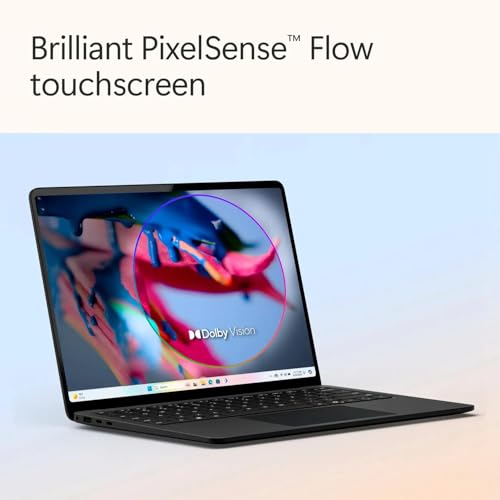
Compare this display against a typical 16:9 ultraportable side by side and the difference is immediate: the 3:2 aspect ratio hands you noticeably more vertical space for documents, spreadsheets, and long webpages without needing a bigger diagonal. That's a genuine daily-use advantage, not a marketing footnote.
The panel itself backs up its numbers. Microsoft rates it up to 600 nits and 1400:1 contrast, and one independent measurement of a similarly built 13.8-inch panel found nearly 600 nits average brightness, roughly matching contrast, and no PWM flicker, meaning eye strain from screen flicker isn't a concern here even during long sessions. That brightness helps most indoors, under office lighting or at a desk away from windows. It doesn't erase the glare that comes with glossy glass outdoors or in a sunlit room, where reflections remain the panel's real weakness no matter how many nits it can push.
Dynamic refresh up to 120Hz is the other half of that experience. Scrolling through a long article or dragging a window feels immediate rather than merely acceptable, and touch input, this is a touchscreen, though not a pen-input one, tracks smoothly at that higher refresh.
None of that comes free. One professional evaluation of the shared chassis measured over 14 hours in a web-browsing battery test at 60Hz and 150 nits, dropping to 13 hours with 120Hz enabled at the same brightness, and down to under 8 hours at full brightness regardless of refresh rate. The lesson: dial brightness down for long unplugged days and decide deliberately whether 120Hz is worth trading away runtime for.
Microsoft's own controlled test for this exact X Plus configuration claims up to 20 hours of local video playback and up to 13 hours of web browsing, figures achieved at 150 nits with auto-brightness off. Treat those as the best-case ceiling and the independent measurements above, taken on a related but not identical unit, as a useful guide to how much your own settings will move the needle.
What the 10-core X Plus can and can't carry
This configuration pairs the 10-core Snapdragon X Plus with 16GB of memory and Adreno X1-85 graphics, a combination built for responsiveness in everyday software rather than sustained heavy lifting.
| Workload | Outlook | What to expect |
|---|---|---|
| Browser tabs, email, Teams/Zoom calls | Excellent | Ten Oryon cores at up to 3.4GHz handle bursty, lightly threaded work without hesitation. This is the laptop's home turf. |
| Microsoft 365 and native Arm64 apps (Chrome, Slack, Spotify) | Excellent | Native Arm64 builds run at full efficiency with no emulation tax, so the CPU headroom translates directly into snappy typing, scrolling, and app switching. |
| Long x86 emulation sessions (older editing tools, legacy utilities) | Mixed | Prism emulation in Windows 11 24H2 handles casual use fine, but sustained emulated workloads pull more power and run noticeably behind native performance, a gap that widens further without X Elite's extra two cores. |
| Photo editing in native Photoshop or Lightroom | Good | Native Arm64 builds of Adobe's mainstream apps run efficiently here, well within what 16GB and the X Plus can support for typical batch edits. |
| Video export and multi-track timelines | Adequate, not fast | Two fewer CPU cores than X Elite show up in exactly this kind of sustained multicore work. Occasional exports are fine; a daily editing workflow will feel the ceiling. |
| Casual or older games | Limited | Adreno X1-85 graphics handle light or older titles, but current demanding games depend on driver support and anti-cheat compatibility that Windows on Arm doesn't uniformly guarantee. |
| Local AI features and Copilot+ tools | Capable | The 45 TOPS Hexagon NPU meets Copilot+ requirements and handles Windows Studio Effects and similar background tasks without touching the CPU budget. |
The X Plus isn't a compromise chip pretending to be something bigger. It's the correct chip for a laptop built around browsing, documents, communication, and light creative work, and in that lane it never feels short of breath. Ten Oryon cores mean multitasking between a dozen tabs, a video call, and a Word document doesn't produce the fan noise or slowdown you'd expect from a thinner ultraportable.
Where the math changes is sustained, all-cores work: long renders, big compiles, repeated batch exports. That's where the 12-core X Elite in pricier Surface Laptop 7 configurations pulls ahead, and where this X Plus configuration shows its limit first. If you can't name a specific recurring task that needs that extra headroom, you likely don't need it.
Graphics are the more predictable limitation. Adreno X1-85 is a productivity and media GPU wearing a gaming-adjacent TFLOPS number. It drives the display, decodes video, and runs older or lightly demanding games acceptably, but it was never meant to replace a discrete GPU, and Windows on Arm's game compatibility remains title-dependent rather than universal.
The 45 TOPS NPU is genuinely useful hardware, powering background blur, eye contact correction, and other Studio Effects without borrowing CPU cycles, but it's a quality-of-life feature riding along on a productivity machine, not the reason to buy one.


Living with the keyboard, touchpad, ports, and charger
Day to day, the haptic touchpad is the component most likely to impress. It has no moving parts, offers adjustable click sensitivity, and multiple professional evaluations independently praised its feel and responsiveness, a rare point of agreement across otherwise differing reviews.
The keyboard is more of a mixed bag. One evaluation called it comfortable with sufficient key travel, while another found the key action softer and less defined than they'd like, though both agreed the arrow keys are cramped. Preference here is genuinely personal, so if precise, clicky key feel matters to you, try one in person before buying.
Port selection is modern but sparse: two USB-C/USB4 ports supporting DisplayPort and Thunderbolt 4 docks, one USB-A port for older accessories, a headphone jack, and Surface Connect. There's no built-in HDMI and no microSDXC reader on this 13.8-inch size (that card slot exists only on the 15-inch model), so anyone who plugs into projectors or external monitors via HDMI regularly will want an adapter or dock.
Charging deserves a specific note: the box ships with a 39W Surface power supply, but fast charging requires at least 65W. One professional measurement of the shared chassis found a full charge took about 139 minutes on the included 39W adapter versus 111 minutes with a 65W adapter, with 80 percent reached in 82 minutes versus 58 minutes. That's a meaningfully faster charge, not a doubling, so budget for a higher-wattage USB-C charger only if quick top-ups genuinely matter to your routine.
Serviceability is better than Surface's reputation suggests. Microsoft documents the battery, keyboard assembly, display, motherboard module, and notably the SSD as replaceable parts, and the bottom panel is held by accessible screws under the rubber feet rather than sealed with adhesive. That doesn't make this a machine for casual self-upgrades, but a battery replacement or SSD swap by a skilled technician isn't a lost cause the way it is on some sealed ultraportables.
The real limitation: what happens outside mainstream software
Every honest conversation about this laptop eventually comes back to Windows on Arm, and the short version is that the fear from this platform's early years is outdated but not entirely gone. Most mainstream software, Microsoft 365, Chrome, Slack, Zoom, Spotify, and mainstream Adobe apps, now runs natively or through Prism emulation well enough that day-to-day use feels like an ordinary Windows laptop.
The gap that remains is driver-dependent hardware and specialized software: older scanners and printers, certain audio interfaces, some VPN or security clients, x86-only virtualization, and games with kernel-level anti-cheat. These aren't hypothetical edge cases for every buyer, they're specific categories worth checking against your own toolkit before ordering. The full pre-purchase checklist for this is covered in the compatibility decision guide below rather than repeated here.
Emulation itself has improved but isn't invisible. Casual use of emulated apps often feels normal, but sustained, CPU-heavy emulated work runs slower and draws more power than native Arm64 software, a distinction that matters if any of your daily-use programs haven't shipped an Arm64 build yet.
The 16GB memory ceiling is a separate, quieter limitation worth naming here in brief: it's fixed for the life of the laptop and becomes the binding constraint before the processor does for anyone running memory-hungry, multi-app workloads. That gets covered in depth in the memory and storage decision guide below.
Will your Windows software and hardware actually work on Snapdragon?
Run through this list before buying, not after. Low-risk, everyday categories: Microsoft 365, mainstream browsers, video calling, cloud storage, streaming, and native Arm64 versions of major creative apps like Photoshop, Lightroom, and DaVinci Resolve. These run natively today and behave like a normal modern Windows laptop.
Higher-risk categories worth a direct check: any peripheral with a manufacturer driver that hasn't published Arm64 support (older printers, scanners, audio interfaces, and specialty input devices), VPN or endpoint-security software tied to a specific CPU architecture, x86-only virtualization or container tools, and any game relying on kernel-level anti-cheat, which frequently blocks or breaks under emulation regardless of raw performance.
The practical test is simple: search the exact software or driver name plus 'Arm64' or 'Windows on Arm' before ordering. If the vendor confirms native support or the tool is web-based, you're clear. If you can't find a clear answer, assume some friction and plan to verify in person or via a return window rather than trusting general reassurance about how far Windows on Arm has come.
None of this makes the platform broadly incompatible in 2026, and it doesn't make it universally safe either. It makes it dependent on your specific software stack, which is exactly why this is a five-minute check worth doing rather than a reason for blanket confidence or blanket avoidance.
Is 16GB of memory enough when the SSD is a full terabyte?
Storage and memory solve different problems, and this configuration's odd pairing, a generous 1TB SSD with a fixed 16GB of memory, makes that distinction worth spelling out. The SSD holds your files, applications, and media at rest. Memory holds what's actively running, and it's the resource that determines how many browser tabs, background apps, and open programs you can juggle before things slow down.
For browsing, Office work, communication apps, and native single-app creative sessions, 16GB is comfortable and rarely the bottleneck; the X Plus processor will usually hit its limit first in those scenarios. Where 16GB becomes the binding constraint is running several virtual machines, a local large language model, heavy multitasking across memory-hungry creative suites, or container-based development work, the kinds of tasks where more RAM directly translates into fewer stalls.
The 1TB SSD, while genuinely useful for storing large media libraries and project files without constantly managing space, cannot compensate for a memory shortfall. Swapping to disk when RAM runs out is dramatically slower even on a fast Gen4 SSD, so a full drive with maxed-out memory usage still feels sluggish.
Because the memory is soldered and non-upgradeable, this decision has to be made at checkout, not after a year of ownership. If your workload today already brushes up against 16GB on your current machine, that ceiling won't move on this one, and it's worth stepping up to a higher-memory X Elite or Surface Laptop 8 configuration instead.
Surface Laptop 6, 7, or 8?
Surface Laptop 6 runs conventional Intel x86 silicon, which substantially lowers compatibility risk for legacy Windows software, older drivers, and specialized peripherals. It doesn't guarantee that literally every application or device will work, nothing does, but it removes the specific Arm-related checklist this review keeps coming back to. In exchange, it carries an older 60Hz display, a previous-generation chassis, a conventional non-haptic precision touchpad, and Wi-Fi 6E.
Surface Laptop 7, this configuration, is the prior-generation value pick. It supplies the modern thin-bezel chassis, the up-to-120Hz 3:2 touchscreen, the haptic touchpad, Wi-Fi 7, strong Arm efficiency, and a genuinely generous 1TB SSD, all at whatever it costs relative to the newer generation. For a buyer whose software already fits Arm, it's a complete, current-feeling experience even though it's no longer Microsoft's newest hardware.
Surface Laptop 8 is the current generation and the performance-first choice: Snapdragon X2 Plus or X2 Elite processors, an 80-TOPS NPU versus 45 TOPS here, up to 64GB of memory and 2TB of storage, and a stronger official active-web battery claim of up to 16 hours versus 13 hours for this Laptop 7 configuration. That's a meaningful step up for anyone doing sustained CPU or GPU work, running local AI models, multitasking heavily, or planning to keep the laptop for many years.
The honest read: buyers who need architecture certainty go Laptop 6, buyers chasing maximum longevity, memory headroom, and the strongest available battery numbers go Laptop 8, and buyers who want the modern Surface experience, tall screen, haptic touchpad, fast wireless, for ordinary Office, browser, and study work without paying the current-generation premium land on this Laptop 7 configuration. Compare the actual prices in front of you before assuming the newest generation is automatically the smarter buy.
Who this product fits
The student who lives in Word, a browser, and Zoom
This configuration is close to ideal: the tall screen makes reading and writing easier, battery life covers a full day of classes, and the 1TB SSD holds years of coursework without needing cloud offloading.
The remote worker who occasionally edits video
Everyday work is smooth, but sustained video export or heavy multi-track timelines will show the X Plus's ceiling; occasional light editing is fine, a daily editing job is better served by an X Elite configuration, Surface Laptop 8, or a traditional x86 laptop.
The buyer replacing an old Surface with 256GB of storage
The jump to a 1TB removable SSD alone solves the single biggest complaint about earlier base Surface models, without asking the buyer to manage cloud storage workarounds.
The specialist with a niche driver-dependent tool
Anyone running an older audio interface, a proprietary VPN client, or software tied to a specific x86 driver should confirm Arm64 support before buying; this is the one scenario where even a well-specced Snapdragon laptop can disappoint.
What else to compare
A few common comparisons come up before buying this configuration.
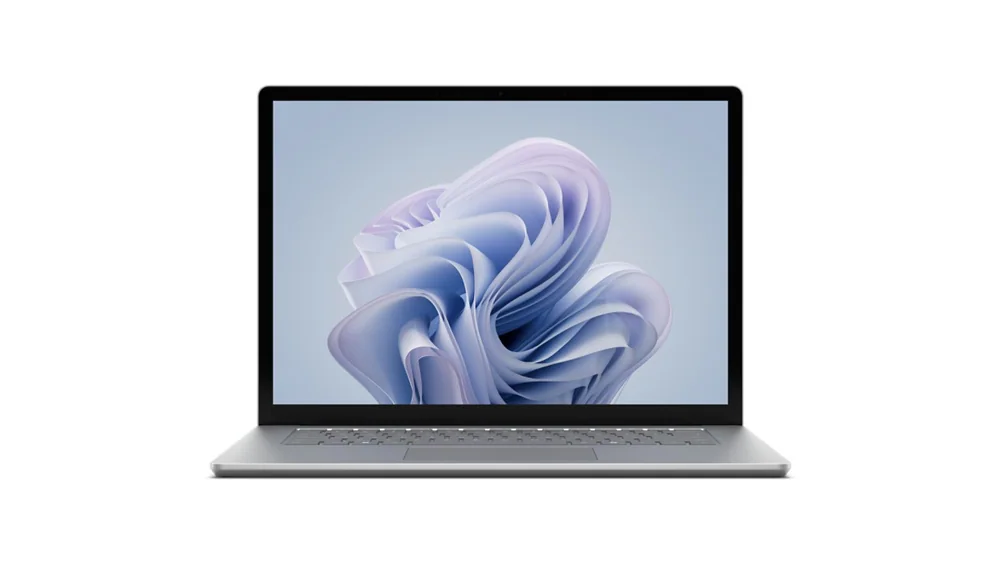 Microsoft Surface Laptop 6The safer Surface for specialized Windows software, older peripherals, and Intel-dependent work
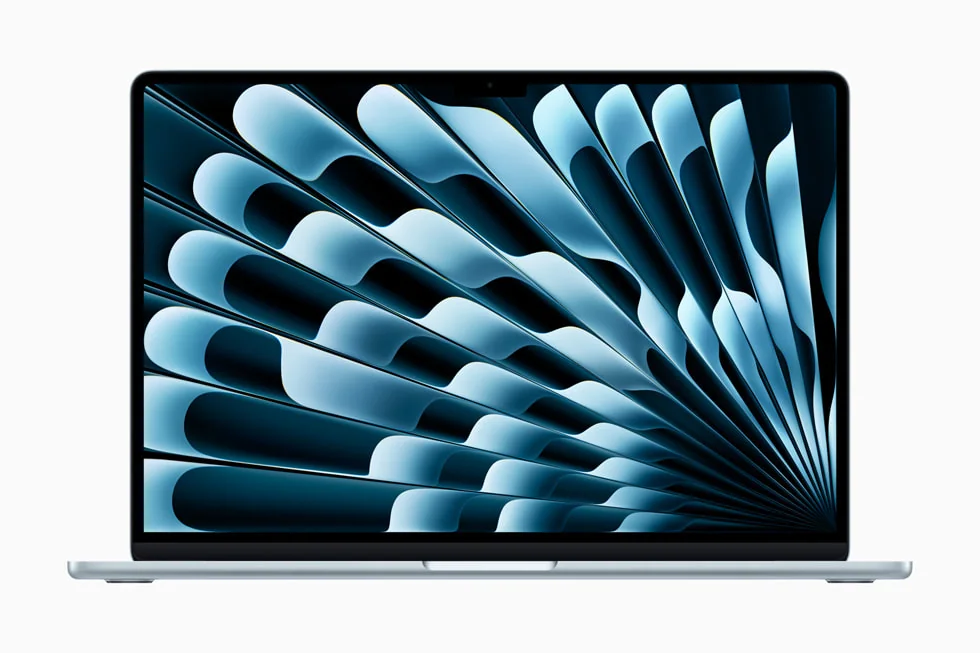 Apple MacBook Air 13-inch (M4, 2025)A fanless alternative with mature Apple-silicon software support when macOS fits the buyer
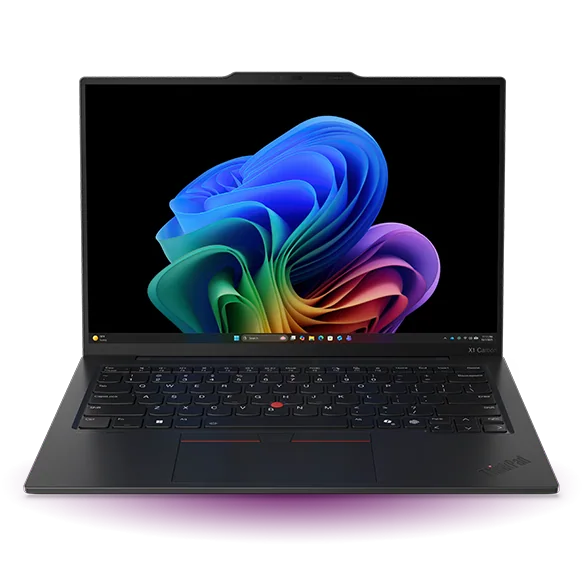 Lenovo ThinkPad X1 Carbon Gen 13 Aura EditionA lighter premium Intel business laptop with stronger compatibility and more built-in ports
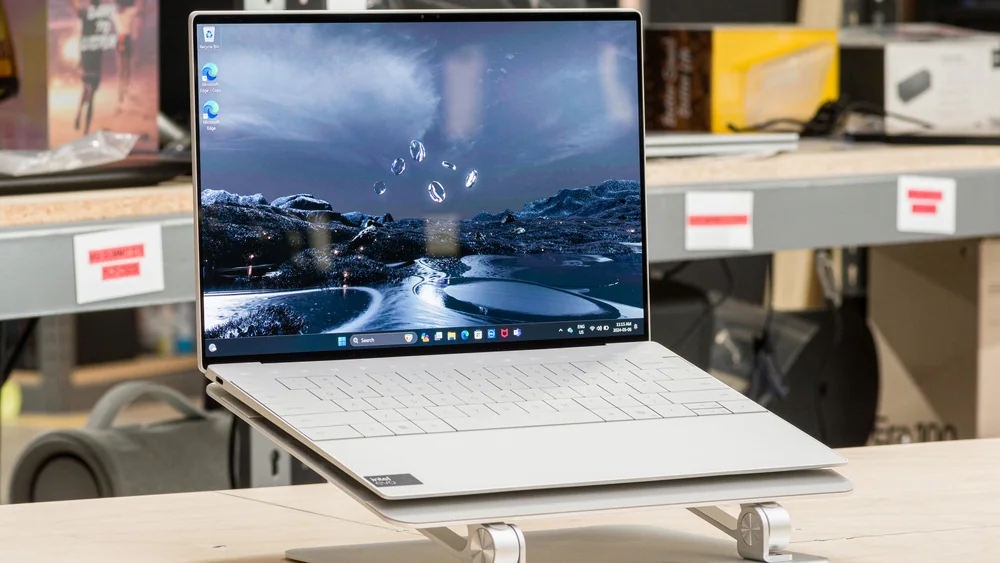 Dell XPS 13 (2024)A smaller ultraportable for buyers who prefer a widescreen shape and a more compact bag footprint
Microsoft Surface Laptop 7 FAQ
Is the Surface Laptop 7 good for gaming?
No. The Adreno X1-85 graphics handle casual and older titles, but current demanding games depend on driver and anti-cheat support that Windows on Arm doesn't uniformly provide. Treat this as a productivity laptop, not a gaming one.
Can I upgrade the RAM or SSD later?
The 1TB SSD is documented as replaceable by a skilled technician, but the 16GB of memory is soldered to the motherboard and cannot be upgraded independently.
Does this Surface Laptop 7 support the Surface Pen?
No. The 13.8-inch PixelSense Flow touchscreen supports touch input but not pen input, unlike Microsoft's Surface Pro line.
How long does the battery actually last?
Microsoft rates this exact configuration at up to 20 hours of video playback and up to 13 hours of web browsing under controlled evaluation. One independent measurement of the shared chassis found web browsing ranging from over 14 hours at 60Hz and moderate brightness down to under 8 hours at full brightness, so your settings meaningfully change the result.
Will my printer, scanner, or VPN work on this laptop?
Most mainstream software runs fine, but hardware that depends on a specific driver, including some older printers, scanners, and VPN clients, may not have Arm64 support. Check the manufacturer's compatibility before buying if you rely on specialized peripherals.
Should I buy this Surface Laptop 7 or the newer Surface Laptop 8?
Surface Laptop 8 is Microsoft's current generation, with a faster Snapdragon X2 platform, an 80-TOPS NPU, higher memory and storage ceilings, and a stronger official battery claim. Choose it for sustained performance work, heavy multitasking, or long-term ownership. This Laptop 7 configuration remains the sensible choice for ordinary Office, browser, and study use when it costs meaningfully less.
Does the included charger support fast charging?
The box includes a 39W Surface power supply, but Microsoft requires at least 65W for fast charging. One independent measurement of the shared chassis found a 65W charger reached full charge in 111 minutes versus 139 minutes for the included adapter, a meaningful but not doubled improvement.
What does the Amazon bundle for this laptop include?
The linked listing pairs the laptop with a third-party 11-in-1 hub and an HDMI cable rather than Microsoft's standard box contents, which is just the laptop, a 39W power supply, and documentation. Bundle contents can change, so treat the laptop itself as the reason to buy.
Sources and research notes
Specifications come from manufacturer documentation. Measured results are attributed to independent evaluations.
- Surface Laptop 7th Edition fact sheetMicrosoft
- Surface Laptop 7th Edition featuresMicrosoft Support
- Using software and peripherals on Surface ARM-based devicesMicrosoft Support
- Windows Arm-based PCs FAQMicrosoft Support
- Surface Laptop 7th Edition device information and service partsMicrosoft Learn
- Microsoft Surface Laptop 7 13.8 Copilot+ reviewNotebookcheck
- Microsoft Surface Laptop 7 reviewWindows Central
- Surface Laptop 7 review: A new era for Windows laptopsPCWorld
- Surface Laptop 7th Edition reviewThe Verge
- Compare Surface Laptop 8th Edition and Surface Laptop 7th EditionMicrosoft
- Surface Laptop 8th EditionMicrosoft
- New Surface devices: Surface Pro and Surface Laptop deliver more performance and flexibilityMicrosoft Source
- Snapdragon X2 Plus is much faster: Microsoft Surface Laptop 13.8 (2026) ReviewNotebookcheck
Should you buy this Surface Laptop 7 configuration?
For the buyer whose day runs on Microsoft 365, a browser, video calls, and native creative apps, this is a yes without hedging, even with Surface Laptop 8 now sitting above it. The 10-core X Plus keeps pace with that work, the 1TB removable SSD ends the storage-anxiety problem earlier Surfaces had, the 3:2 screen makes reading and writing genuinely easier, and Microsoft's rated battery figures, backed by independent measurements showing how brightness and refresh rate move the number on this shared chassis, point to a laptop that comfortably clears a full workday.
Choose an Intel-based Surface Laptop 6 instead if your work depends on a specific legacy driver, a kernel-anti-cheat game, or specialized virtualization software that hasn't confirmed Arm support, accepting its older 60Hz display, previous-generation chassis, and conventional touchpad in exchange for that certainty. Choose Surface Laptop 8 if you need the strongest available performance, memory, storage, and battery headroom for years of heavier use. For everyone else living in ordinary modern productivity software who wants a well-configured, current-feeling Surface without paying the newest-generation premium, this configuration is the sensible way to buy into the Surface Laptop 7 generation.