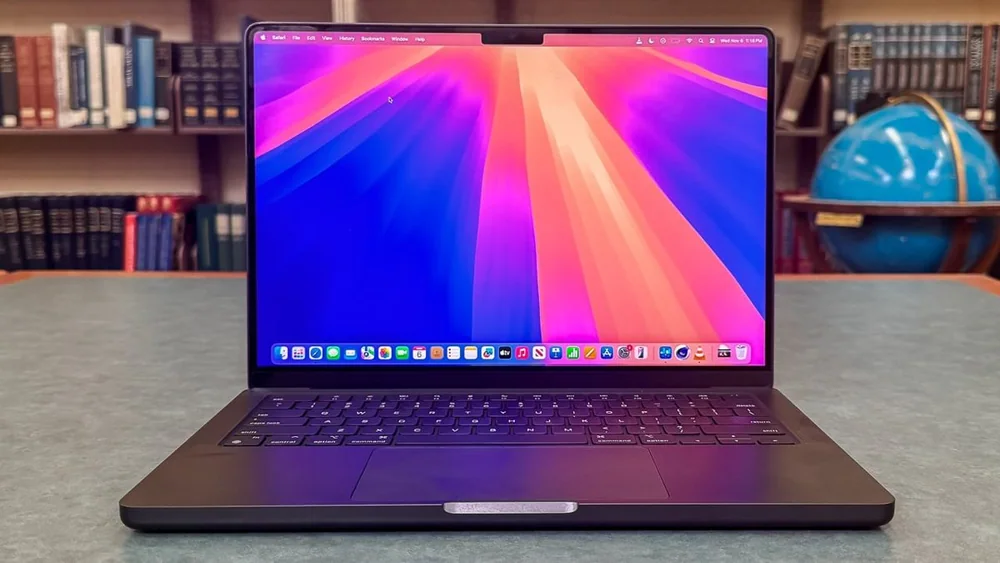
Remote work goes smoother when your laptop looks and sounds good on calls and stays comfortable all day.
Remote work punishes the small stuff. A laptop can feel fast enough for email and docs, but still make you look grainy on video, pick up keyboard clatter, or die early in the afternoon because the screen is too bright and the battery is too small. The goal is a machine that disappears into your day: a webcam that holds up in real room lighting, microphones that do not amplify fan noise, ports that match your desk setup, and ergonomics that keep your wrists, neck, and eyes from hating you by Friday.
Reading time: 9 minutesBest for: People who live in video calls, work from home or coffee shops, and want a laptop that stays comfortable and reliable all day
Remote-work laptops succeed or fail on calls, not benchmarks
Webcam quality is mostly about sensor size, lens, and processing, not the megapixel number on the spec sheet. A 1080p webcam can still look soft if it is noisy in indoor light, and that noise gets worse when your room is dim or the screen is the only light source. If you are often backlit by a window, look for cameras that handle high contrast well, or plan to add a small desk light so the camera can use a lower gain and keep your face sharp. Microphones matter just as much as the camera because remote work is a two-way experience. Many laptops use multiple mics and software noise reduction, but aggressive noise reduction can clip your voice or make it sound watery when you speak quickly. Fan noise is the hidden villain here: thin laptops can ramp fans during video calls because the CPU is working continuously, and that noise sits right next to the mics. Better cooling usually means steadier, quieter calls, even if the laptop is not marketed as a -performance- model.
Battery life and charger size decide where you can actually work
-Up to- battery life is measured under light use, so treat it as a ceiling, not a promise. Real remote-work battery life drops fast with higher brightness, constant Wi-Fi, video calls, and lots of browser tabs. If you regularly do half-day sessions away from an outlet, prioritize efficiency and battery capacity over peak performance, and assume you will run the screen brighter than you think. Charger size is part of ownership, not an accessory detail. A compact USB-C charger is easier to live with than a large barrel-plug brick, and it is simpler to replace or share across devices. Also check whether the laptop can charge over USB-C at full speed or only slowly, because slow charging can turn a quick coffee-shop stop into a scramble. If you use docks or monitors, confirm the laptop supports USB-C Power Delivery and video output on the same port so one cable can handle charging and display.
Ports and connectivity shape your desk setup and your travel kit
Ports are where remote-work friction shows up. If you use an external monitor, you want a reliable video output path: HDMI is simple, while USB-C video depends on the port supporting DisplayPort Alt Mode, which not every USB-C port does. If you move between home and office, a single-cable dock setup is great, but only if the laptop supports the right USB-C or Thunderbolt standard and can drive your monitor resolution and refresh rate without weird dropouts. Think through the accessories you already own. USB-A still matters for older receivers, flash drives, and headsets. An SD card slot is a big deal if you move photos or video, and built-in Ethernet is still the most stable option for important calls, even if you only use it occasionally. If the laptop skimps on ports, you will live on dongles, and dongles are easy to forget, easy to break, and often the first thing to cause flaky monitor connections.
Ergonomics: keyboard, screen, and thermals decide daily comfort
Keyboard feel is not a luxury if you type all day. Key travel, spacing, and a stable deck reduce fatigue, and a good touchpad prevents the constant micro-annoyance of missed clicks. If you are sensitive to noise, pay attention to keyboard clack and trackpad click sound, because those noises can bleed into calls and also make shared spaces harder. The display is your most-used -tool,- so brightness and panel quality matter more than raw resolution. Brightness determines whether you can work near windows without cranking the screen to max and draining the battery. Panel type affects comfort: IPS screens tend to be consistent and glare-resistant in many models, while OLED can look gorgeous but may use more power at high brightness and can show reflections more strongly depending on the finish. Also watch heat: a laptop that runs hot on your lap or warms the keyboard during calls becomes distracting, and heat often correlates with louder fans and shorter battery life.
What this guide helps you understand
Pick a remote-work laptop by call quality, comfort, and ports first, then performance.
List your top two call apps, your typical lighting (window behind you or not), and every device you plug in weekly, then verify the laptop has the ports and charging method to support that setup without adapters.
Technique notes
If you plan to use an external monitor most days, budget for a solid USB-C cable or dock and treat it as part of the laptop purchase, because it changes how pleasant your daily setup feels.
Safety note: If you use the laptop on a bed or couch, keep vents clear to avoid overheating and sudden performance slowdowns during calls.