
Pickori

Laptop advice

What Matters in a Photo-Editing Laptop

Photo editing feels smooth when the display is accurate and the laptop can sustain performance without lagging or overheating.

Photo editing stresses a laptop in two places: the screen and sustained performance. A laptop can have a fast CPU and still be a poor editing machine if the display is dim, shifts color off-angle, or makes it hard to judge shadows and skin tones. On the performance side, editing sessions are often long, and thin laptops may throttle, slowing down after the first few minutes. A good photo-editing laptop is one you can trust for color decisions and one that stays responsive while you work through batches. That usually means prioritizing display quality, enough RAM for large files and multitasking, fast SSD storage for catalogs and exports, and cooling that can hold steady during long edits.

Reading time: 9 minutesBest for: Photographers and creators who want accurate color, smooth editing, and fast exports on a laptop
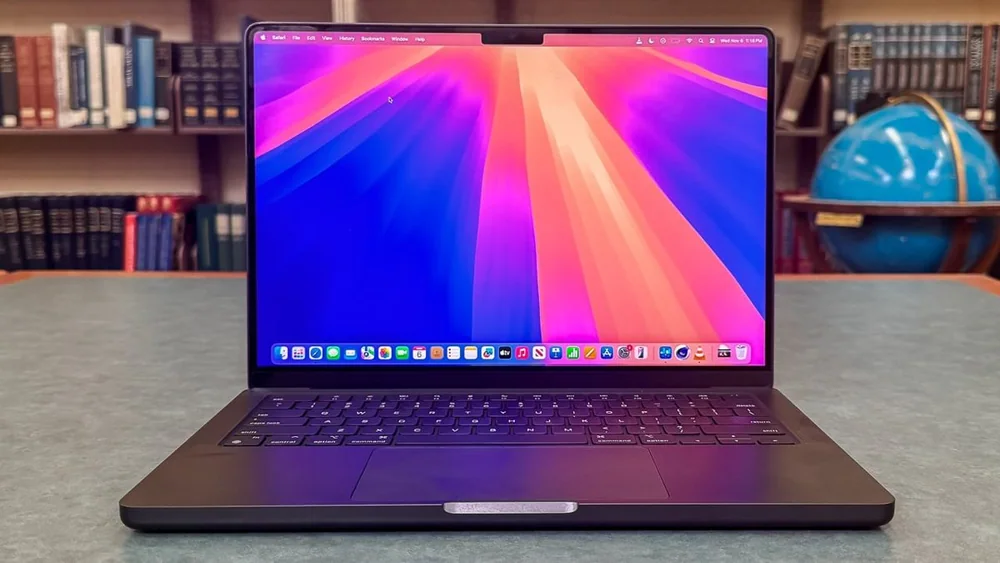
Apple MacBook Pro 14 (2024)

Display quality is the foundation: panel type, brightness, and resolution

Display specs are not decoration for photo work. Panel type describes how the screen makes color and contrast. IPS panels are common and tend to have stable viewing angles, while OLED panels can offer deep contrast and punchy color. What matters is that the screen is consistent and comfortable to judge edits on, especially in midtones and shadows. Brightness changes where you can work. A high-resolution screen is not helpful if it is too dim for your typical environment, because you will crank brightness and still struggle near windows or in bright rooms. Resolution affects how much detail you can see at once, but it also increases power use and can reduce battery life. For editing on the go, a balanced resolution with good brightness often feels better than maximum pixels with a mediocre panel.

RAM and CPU: keeping edits responsive with large files and layers

RAM (memory) is the short-term workspace for your editor, your browser references, and your catalog. Too little RAM shows up as pauses when you switch tools, apply adjustments, or jump between images, especially with high-resolution files and layered edits. More RAM helps you keep multiple apps open without the laptop constantly shuffling data. CPU (processor) affects how quickly the laptop applies certain adjustments, builds previews, and handles exports. Efficient CPUs can also help battery life during lighter editing. The key is sustained responsiveness: if you edit for hours, you want a laptop that stays consistent rather than one that feels fast for a few minutes and then slows as heat builds.

Storage (SSD) and workflow: catalogs, scratch space, and exports

Storage (SSD) speed affects daily editing more than many people expect. Fast SSDs reduce the wait when opening catalogs, loading previews, and moving through large folders. If your workflow involves frequent imports and exports, SSD speed and capacity both matter because you are constantly reading and writing large files. Storage size is an ownership issue. Photo libraries grow, and running out of space forces you into constant cleanup or external drive juggling. If you edit off external drives, ports and cable reliability become part of your workflow. A laptop with enough internal SSD space for active projects plus room for caches and scratch files tends to feel smoother and less fragile day to day.

GPU and cooling: when -fast- turns into fan noise and throttling

A dedicated GPU (a separate graphics chip) can help with certain acceleration tasks and can make some editing workflows feel snappier, especially when combined with a strong CPU and enough RAM. Integrated graphics (built into the CPU) can still be fine for lighter editing, but you may notice slower performance with heavy effects, high-resolution displays, or large batch operations. Cooling decides whether performance holds up during long exports and batch edits. Thin laptops can throttle, meaning they slow down to manage heat, which stretches export times and can make the system feel inconsistent. The tradeoff is that laptops built for sustained performance are often heavier and louder under load. If you edit in quiet spaces, fan behavior becomes part of ownership, not a minor detail.

What this guide helps you understand

This guide should make it easier to choose a photo-editing laptop you can trust for color and rely on for long, smooth editing sessions.

Prioritize a display with comfortable brightness and stable color behavior for your typical editing environment.
Choose enough RAM to keep your editor, catalog, and browser open without slowdowns, and an SSD size that fits active projects plus working space.
If you do long exports or batch edits, favor laptops with stronger cooling so performance stays consistent.

Technique notes

A powerful GPU can improve some workflows, but it often brings more heat, fan noise, and shorter battery life, so only pay for it if your editing style benefits.
High resolution is useful, but it is not a substitute for brightness and panel quality when you are making color decisions.

Safety note: Back up your photo library regularly and avoid editing directly from a single external drive without a second copy.

More from Laptops

As an Amazon Associate I earn from qualifying purchases.

← Back to Laptops