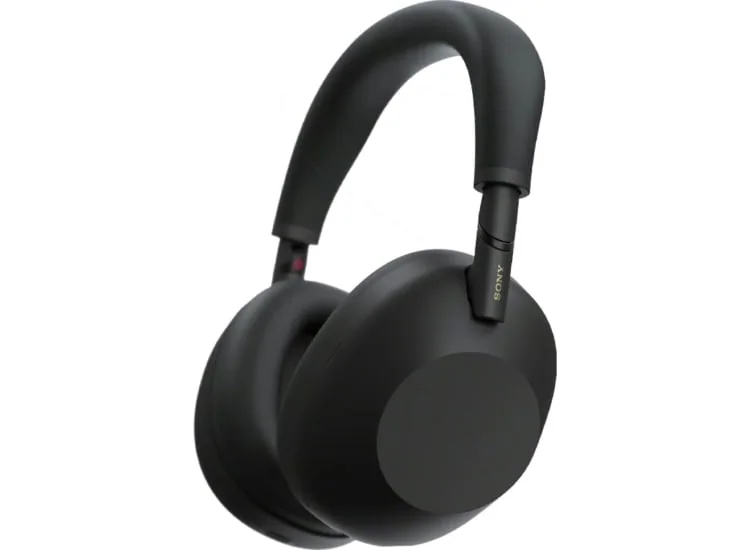
Make headphone calls clearer by improving mic placement, reducing noise, choosing the right mode, and checking the device that is actually handling your voice.
Nothing makes a call feel longer than hearing, "Sorry, can you say that again?" when you are standing still and speaking perfectly clearly. Headphone call quality is not just a microphone spec. It is the small chain of decisions between your mouth, the surrounding noise, the headphones, and the phone or computer. The quick answer: get close enough to the microphone when your headphones have a boom, keep wind off the mics, use the noise mode that suits the setting, and confirm your device has selected the right input. A quiet corner and a few seconds in settings can do more for a meeting than chasing a flashy call-quality claim.
Reading time: 8 minutesBest for: People using headphones for phone calls, video meetings, and voice chat
How headphone microphones pick up your voice
Your headphones are trying to separate your voice from everything else happening around you. Earbuds and wireless over-ear headphones usually use several tiny microphones, then software attempts to identify speech and suppress competing sound. That works best when your voice arrives clearly and consistently. A boom microphone, common on gaming and office headsets, has a built-in advantage because it sits close to your mouth. Small microphones tucked into an earbud have a harder job, especially outdoors or in a busy room.
Position matters more than it seems. With a boom, place the tip near the corner of your mouth, about an inch or two away, rather than directly in front of your lips where breath pops can overwhelm speech. Do not leave it folded up by your temple and expect it to perform miracles. With earbuds, make sure each bud is seated as intended and not rotated loose. A poor fit can shift the microphone away from its designed position and make your voice sound faint, hollow, or inconsistent.
Reduce wind and traffic noise
Wind is a microphone's natural enemy. It does not need to be a dramatic gust to cause trouble. A brisk walk, an open car window, or air moving across a train platform can create a low roar that masks your words. If you need to take a call outside, turn so your body blocks the wind, step beside a wall or doorway, or move indoors for anything that requires clear details. Holding a scarf, collar, or hand over the microphone is usually a bad fix because fabric rub and handling noise can be just as distracting.
Traffic creates a different problem: a changing mix of engines, tires, horns, and passing voices. Headphone processing can reduce some of it, but it cannot reliably remove every sudden sound without occasionally clipping the beginning or end of your words. Pause when a bus or truck passes, speak at a normal steady volume, and avoid walking beside the loudest lane if the call matters. Shouting rarely helps. It can distort your voice and gives the noise-reduction system more chaos to sort through.
Choose the right noise-control mode
Active noise cancellation, often called ANC, uses microphones and electronic processing to reduce steady outside sound such as engine rumble, air conditioning, and train noise. It is mainly there to improve what you hear. It may make you feel calmer on a call, but it does not automatically mean the person on the other end hears less noise. Some headphones also offer a separate voice or call-noise-reduction feature, which is the setting that matters most for your outgoing audio.
Transparency mode pipes outside sound through the headphones so you can hear your surroundings. It is useful when you need to catch an announcement, talk briefly with someone nearby, or stay aware while walking. For a call in a quiet room, though, it can add unnecessary room sound to your ears and make you speak louder than needed. Try ANC or a standard listening mode in a noisy place, and use transparency only when awareness is genuinely useful. If a mode makes your own voice sound oddly boomy, switch it off before an important conversation.
Check phone and computer input settings
A surprisingly common problem is that the headphones are connected, but the phone or computer is using a different microphone. On a computer, open the sound settings before the meeting begins and select your headphones as the input device, not just the output device. Then use the input meter or the meeting app's microphone test. Speak a full sentence, not a single "hello," because a short test can miss clipping, dropouts, or aggressive noise suppression.
Phones can be less obvious because they often switch audio routes automatically. Check the call screen or Control Center-style audio selector to confirm the call is using your headphones. If people say you sound distant, disconnect and reconnect the headphones, then place a short test call or record a voice memo. Also check app permissions. A video-call app without microphone permission may fall back to an unexpected input or fail to send your voice at all. A restart is not glamorous, but it can clear a stubborn Bluetooth handoff.
How to Get Better Call Quality From Headphones 5
Your room can either help your headphones or make them work overtime. Hard, bare surfaces bounce speech around, which creates a roomy, echo-prone sound. A kitchen with tile, a mostly empty office, or a parked car can be tougher than it looks. Move toward softer furnishings, close a door, and put a little distance between yourself and noisy appliances. Even turning away from a clattering keyboard or a running fan can make your voice easier to understand.
Do not confuse silence with isolation. A quiet room is ideal, but a small enclosed space can still sound boxy if you speak from across it. Keep your phone or computer nearby if you are using a headset, and avoid pacing far from a laptop with a weak Bluetooth connection. For a long meeting, settle into one spot with reliable signal rather than wandering through rooms, stairwells, and elevators. The person on the other end will notice the steadiness, even if they never know why the call suddenly sounds better.
How to Get Better Call Quality From Headphones 6
Before an important call, give yourself a 30-second preflight check: charge the headphones, confirm the correct microphone, turn off any mode that makes your own voice distracting, and listen for wind or fan noise. If you use earbuds, wipe the microphone openings gently with a dry, soft brush or cloth. Pocket lint and skin oils can block tiny ports over time. Do not poke them with pins or flood them with cleaner, which can damage the mesh or push debris farther inside.
Connection stability deserves the same attention as microphone quality. Keep the source device reasonably close, avoid burying it behind your body or inside a crowded bag, and disconnect from devices you are not using. Multipoint, a feature that lets headphones stay connected to more than one device, is convenient but can cause confusion when a laptop steals the connection during a phone call. If you need reliability for a presentation or interview, temporarily connect to one device only and keep a wired option available when your equipment supports it.
What this guide helps you understand
Clearer calls usually come from controlling the scene, not from speaking louder. Put the microphone where it belongs, get out of the wind, select the correct input, and give the headphones a quieter, steadier signal to work with.
Charge the headphones and confirm they are connected before the call begins.
Check that the phone, computer, or meeting app has selected the headphones as its microphone input.
Use a short voice recording or call test after changing settings.
Keep the source device close enough for a stable Bluetooth connection.
Technique notes
ANC mainly improves what you hear; outgoing call-noise reduction is a separate capability when available.
A single-charge battery estimate matters more than a case's total battery number when you have back-to-back calls.
A secure earbud fit helps both comfort and consistent microphone placement.
Safety note: When walking or running near traffic, keep enough awareness of your surroundings to hear hazards and announcements.