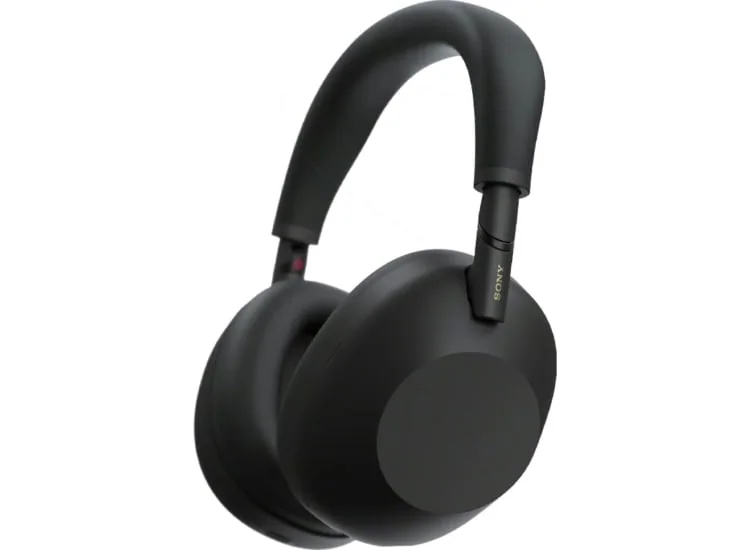
A practical way to track down Bluetooth dropouts, stutters, lag, and flaky device switching before deciding your headphones need replacing.
Nothing punctures a good song, a meeting, or the last ten minutes of a podcast like audio that hiccups every few seconds. The good news is that most Bluetooth trouble comes from distance, interference, a confused pairing, or a source device that needs attention, not a permanently broken pair of headphones. Work from the simple fixes outward: move closer, reduce obstacles and wireless clutter, restart both devices, then forget and re-pair the connection. If the problem follows the headphones across several devices, firmware, battery condition, or the headphones themselves become more likely suspects.
Reading time: 8 minutesBest for: Wireless headphone and earbud owners dealing with dropouts, stuttering, lag, or unstable multipoint pairing
Common causes of Bluetooth dropouts
Bluetooth audio is a short-range radio connection, and it has more moving parts than a cable. A dropout can come from the headphones, the phone or computer, a low battery, a software bug, another saved device trying to reconnect, or a crowded patch of wireless air. The pattern matters. Audio that fails only on one train platform points in a different direction than audio that cuts out at home, at work, and on a walk.
Begin with a quick isolation check. Charge the headphones and source device, turn Bluetooth off and back on, and play audio with the headphones close to the source. Then try a second source, such as a laptop instead of a phone. If the issue disappears with the second device, the original phone, computer, app, or its settings deserves attention. If it persists everywhere, focus on the headphones and their connection setup.
Distance and physical interference
A stated Bluetooth range assumes unusually friendly conditions. In daily life, a body, a winter coat, a packed bag, a metal desk, or a wall can sit between the source and the headphones. This is especially common when a phone is in a back pocket and one earbud repeatedly sputters. Your body absorbs and blocks radio signals more effectively than the tidy diagrams on a product box suggest.
Put the source on the same side of your body as the troubled earbud, or move it to a shirt pocket, jacket pocket, or desk. For over-ear headphones, keep the phone or computer nearby rather than across a room. Remove the headphones from a bag before judging the connection. If a short, clear line between devices fixes the problem, there is no mystery to solve: change where you carry the source or accept that the setup has a shorter reliable range.
Crowded wireless environments
Bluetooth shares the 2.4 GHz radio band with many Wi-Fi networks and smart devices. A busy airport gate, gym, apartment building, or office can turn that band into a crowded room where every device is trying to be heard. Microwave ovens and some USB 3.0 accessories can also create interference nearby. A connection that behaves at home but stutters in one location is often reacting to the environment rather than failing.
Try a few small changes before blaming the headphones. Move away from a Wi-Fi router, unplug a nearby USB hub or external drive, and keep the source out in the open. On a computer, switching from a congested 2.4 GHz Wi-Fi network to a 5 GHz or 6 GHz network can leave more breathing room for Bluetooth, if your router and computer support it. You cannot clear an airport terminal, but you can keep the phone close and avoid burying it behind your body or luggage.
Restarting and re-pairing devices
A restart clears temporary connection errors that can linger after an operating-system update, a failed call handoff, or a device waking from sleep. Turn the headphones fully off if they have a power control, restart the phone or computer, then turn the headphones back on. This plain fix is effective because it forces both sides to establish a fresh connection instead of clinging to a bad one.
If restarting does not help, forget the headphones in the Bluetooth settings on the source device and pair them again from scratch. Forgetting removes the saved pairing record, which can become confused when a device has been paired repeatedly or restored from a backup. Follow the manufacturer's pairing instructions, and make sure the headphones are not actively connecting to a tablet, watch, or old laptop nearby. Re-pairing is also a sensible first move when multipoint, the feature that lets headphones stay connected to two devices, starts switching at the wrong moment.
Updating headphone firmware
Firmware is the built-in software that runs the headphones. Manufacturers sometimes release updates to improve connection stability, call behavior, battery reporting, or compatibility with newer phones and computers. Use the headphone maker's companion app, if one is available, to check for an update. Keep the headphones charged and leave the app open until the update finishes; interrupting the process can create a new problem where there was only an annoying old one.
Also update the source device. A phone, tablet, or computer update can include Bluetooth fixes, and an outdated operating system may struggle with newer headphones. After updating, restart both devices and test with ordinary music or a podcast before changing more settings. Do not chase every audio option at once. Bluetooth codecs, the methods used to compress and transmit wireless audio, can affect sound quality and sometimes compatibility, but stable playback and a good fit usually matter far more than a codec label.
When a source device is the likely problem
Suspect the source when one phone or computer misbehaves while another works normally with the same headphones. On a phone, close apps that are actively using audio, disconnect unused Bluetooth accessories, and check whether the trouble appears in every app or only one streaming service. On a computer, make sure the headphones are selected as the audio output and not stuck in a low-quality call mode after a meeting. A reboot often clears that particular bit of digital clutter.
Lag needs its own diagnosis. A slight delay is normal with Bluetooth, but obvious lip-sync trouble can come from a video app, a computer's audio settings, or a connection that has fallen into a call-focused mode. Test with a different video app and a different source before assuming the headphones are defective. If the headphones cut out, stutter, or lag on multiple fully updated devices at close range after re-pairing, contact the manufacturer for support or consider replacement. At that point, you have ruled out the usual suspects rather than merely hoping the next restart will be magic.
What this guide helps you understand
Treat Bluetooth trouble as a pattern, not a verdict. A problem tied to one room, pocket position, app, or source device usually has a practical fix; a problem that follows the headphones everywhere after charging, updating, and re-pairing is the stronger case for repair or replacement.
Charge both the headphones and source device before troubleshooting, since low power can affect wireless behavior.
Test at close range with a second phone, tablet, or computer to separate a headphone issue from a source-device issue.
Know how to put the headphones into pairing mode and forget the existing Bluetooth connection on the source device.
Technique notes
Multipoint connections can be convenient but may cause unwanted switching when a second paired device wakes up or starts playing audio.
For earbuds, keep the charging contacts and case pins clean and dry so each earbud is actually receiving a full charge.
A wired connection, where available, can be a useful temporary backup for over-ear headphones, but it will not diagnose a Bluetooth issue on its own.
Safety note: Do not wear headphones in situations where hearing traffic, alarms, or nearby people is necessary for your safety.