How to Pair Bluetooth Headphones With Your Phone, Computer, and TV
Published Updated
Get Bluetooth headphones connected to your phone, computer, or TV without getting stuck in a loop of missing devices and silent audio.
Nothing punctures the small pleasure of new headphones quite like a device that cannot find them. The fix is usually simple: put the headphones in pairing mode, make sure they are not already clinging to another device, then choose them from your phone, computer, or TV's Bluetooth menu. The menus change a little from one device to another, but the logic does not. Pairing creates the first connection; after that, your headphones should reconnect when Bluetooth is on and they are nearby. When they do not, a few deliberate checks beat tapping the same button six times and hoping for mercy.
Reading time: 8 minutesBest for: Anyone connecting Bluetooth headphones, earbuds, or a wireless headset to everyday devices
Put the headphones into pairing mode
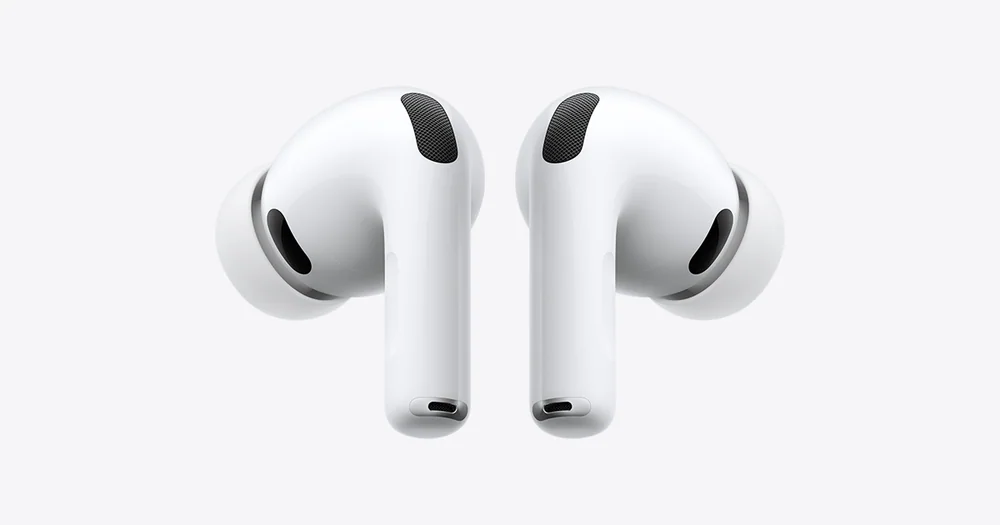
Pairing mode is the discoverable state that lets a new phone, computer, or TV see your headphones. Start with enough battery power to avoid a shutdown midway through setup. For many over-ear headphones, turn them off first, then press and hold the power button longer than you would for a normal startup, often until an indicator light flashes in alternating colors or a voice says "pairing." True wireless earbuds commonly enter pairing mode when both buds are in the open case and you hold the case button, though some require a press on one or both earbuds.
Do not assume that a blinking light always means pairing mode. It may only mean the headphones are on, charging, or reconnecting to a familiar device. Check the quick-start instructions for the exact button sequence and light pattern. If the headphones immediately reconnect to your phone, tablet, or laptop, temporarily turn Bluetooth off on that old device or move it out of range. A pair that is busy reconnecting is often invisible to the new device you are trying to use.
Pair with an iPhone or Android phone
On an iPhone, open Settings, tap Bluetooth, and turn Bluetooth on if needed. Keep that screen open while the headphones are in pairing mode, then tap their name under Other Devices. Once they move to My Devices and show Connected, play a short song or video to confirm that audio is actually going to the headphones. If you see a pairing request, approve it. Some models also offer an optional companion app for firmware updates, sound controls, or finding a misplaced earbud, but the Bluetooth connection itself should work without it.
On Android, open Settings and look for Connected devices, Bluetooth, or a similarly named menu, since wording varies by phone maker. Turn Bluetooth on, choose Pair new device, and tap the headphone name when it appears. Android may ask you to confirm pairing or allow access to contacts for call features. If the headphones connect but sound still comes from the phone speaker, open the Bluetooth device details and make sure Media audio is enabled. For a call-focused headset, also check that Phone calls is enabled. Those two switches can be the difference between a successful connection and a baffling half-connection.
Pair with a Windows computer or Mac
On a Windows computer, open Settings, select Bluetooth & devices, turn Bluetooth on, then choose Add device and Bluetooth. Select your headphones from the list and wait for Windows to confirm the connection. Afterward, click the speaker icon in the taskbar and select the headphones as the audio output. This last step matters because Windows may pair the headphones while continuing to send sound to the laptop speakers, a particularly unhelpful trick during a meeting.
On a Mac, open the Apple menu, choose System Settings, then Bluetooth. Turn Bluetooth on, find the headphones, and click Connect. If they pair but music or video still plays through the Mac, open Control Center from the menu bar, choose Sound, and select the headphones as the output. For video calls, open the call app's audio settings too. A Mac can use one device for listening and another for the microphone, so confirm both before the meeting begins rather than discovering the mismatch when someone asks if you are there.
Connect Bluetooth headphones to a TV
First, confirm that your TV supports Bluetooth audio output. Many newer smart TVs do, but some use Bluetooth only for remotes, keyboards, or game controllers. In the TV settings, look under Sound, Audio Output, Speakers, or Bluetooth Devices. Put the headphones in pairing mode, choose the option to add or search for a device, and select the headphones when their name appears. The TV may switch its speakers off automatically, or it may offer a choice between TV speakers and Bluetooth audio.
Expect a few limits. Some TVs allow only one Bluetooth audio device at a time, and some introduce a slight delay between picture and sound. That delay is called latency, and it is most noticeable when watching dialogue because lips and voices no longer line up. Look for an audio delay or lip-sync setting in the TV menu, but do not expect every pairing to be perfectly adjustable. If you need dependable private listening from an older TV, a Bluetooth transmitter connected to the TV's audio output can add the missing wireless link.
How to Pair Bluetooth Headphones With Your Phone, Computer, and TV 5
When the headphones do not appear in the Bluetooth list, reset the situation before blaming the device. Confirm that the headphones are in true pairing mode, not merely powered on. Move within a few feet of the phone, computer, or TV, and charge the headphones or case if the battery is low. Then turn Bluetooth off and back on at the source device and search again. On a phone or computer, it can also help to restart the device, especially after an operating-system update or a long stretch of sleep mode.
If the headphones appear but refuse to connect, remove the old pairing record and begin again. On an iPhone, tap the information button beside the device name and choose Forget This Device. On Android, use the gear icon beside the device and choose Forget or Unpair. Windows and Macs offer a Remove or Forget option in their Bluetooth settings. Then place the headphones back in pairing mode and create a fresh connection. This clears out stale connection details that can linger after a software update, a reset, or a switch between devices.
How to Pair Bluetooth Headphones With Your Phone, Computer, and TV 6
A connection is not always the same as a useful connection. If music plays but calls sound poor, your computer may have switched to a lower-quality headset mode so it can use the headphone microphone. That is normal Bluetooth behavior on many systems. For better meeting audio, choose the headphones for output and use the computer's built-in microphone or a separate USB microphone for input when the app allows it. You will usually get clearer playback and fewer complaints about your voice.
Multipoint pairing can make life easier, but it can also create confusion. Multipoint means the headphones can stay connected to two devices, such as a laptop and phone, and switch when one starts playing audio or receives a call. If sound keeps jumping to the wrong device, turn off multipoint in the headphone app if available, or disconnect the device you are not using. For travel, remember that airplane seat systems often still need a cable or a Bluetooth transmitter. Wireless headphones do not automatically connect to every screen with a headphone jack.
What this guide helps you understand
Pairing is usually a three-part job: make the headphones discoverable, select them in the source device's Bluetooth menu, and then choose them as the active audio output. If that fails, forget the old connection on both sides and start fresh.
Charge the headphones or earbud case before setup.
Know the button or case sequence that activates pairing mode.
Check that the phone, computer, or TV supports Bluetooth audio output.
Keep the headphones close to the device during the first connection.
Technique notes
A headphone name that appears in the Bluetooth menu does not guarantee it is the selected audio output.
Bluetooth settings labels vary by device maker and software version.
For wired airline entertainment systems, bring the cable or adapter your headphones require.
Safety note: Keep enough awareness of traffic, announcements, and people around you when using headphones while walking, running, or traveling.