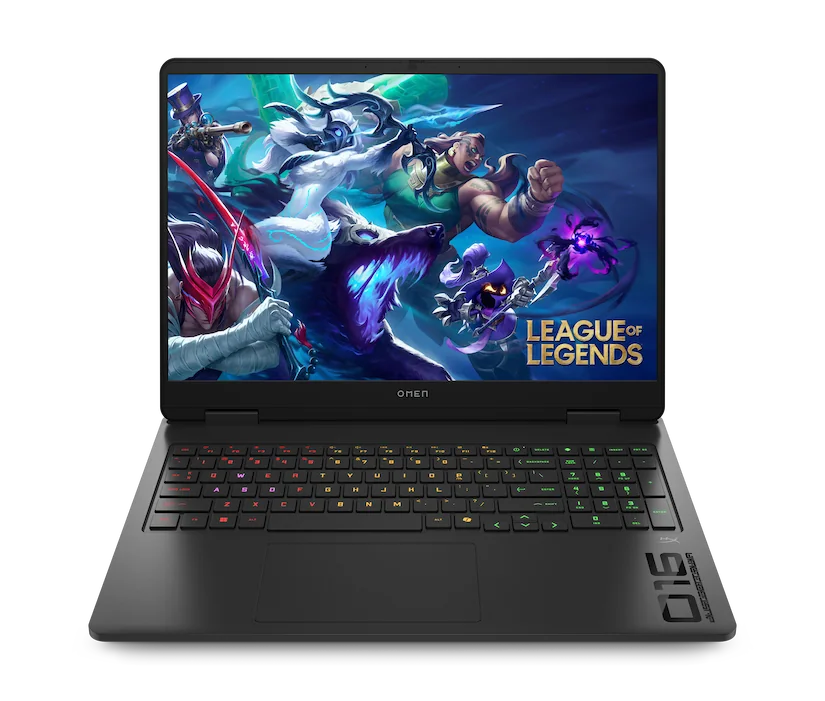
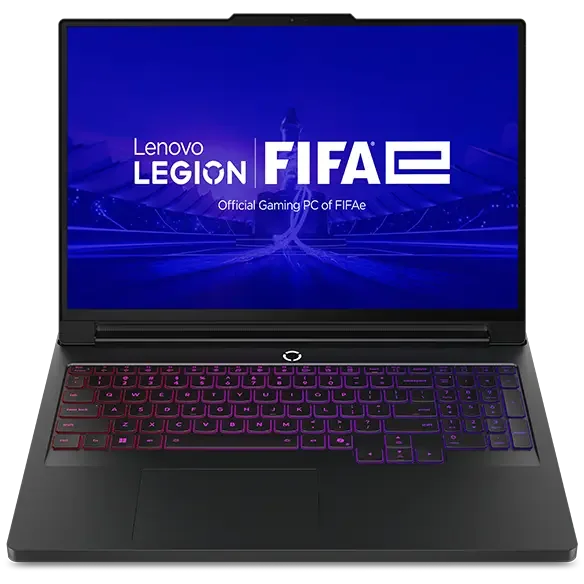
Start with your target frame rate and settings
Make a simple list of your top five games and how you want them to feel. For competitive games, decide whether you care more about maximum smoothness (high frame rate) or higher visual settings. For AAA games, decide whether you want high settings at a steady frame rate, or you are willing to use upscaling (a feature that renders the game at a lower resolution and sharpens it) to keep performance comfortable. This step prevents overpaying for performance you will not use, or underbuying and living with constant compromises. Then match expectations to a realistic performance target. A high refresh screen is only satisfying if the laptop can often reach those frame rates in the games you play. If your favorite titles are heavy, you will notice stability more than peak numbers. A laptop that holds a consistent frame rate usually feels better than one that spikes high and then drops when it heats up. That is why cooling and power limits matter as much as the GPU name.
Pick the right GPU tier, then check the laptop's power limits
The GPU (graphics processing unit) sets your gaming ceiling, but the laptop decides how close you get to it. Start by choosing a GPU tier that fits your resolution and game type. Lower tiers can be great for esports at 1080p, while higher tiers are better for higher resolutions, ray tracing, and demanding games. Do not stop at the GPU label, because laptop versions of the same GPU can run at different sustained wattage. Look for clues that the laptop can actually feed and cool the GPU. Manufacturers may list a GPU power limit (often shown as watts) or talk about total graphics power. Higher sustained wattage usually means higher sustained performance, but only if the cooling system can remove the heat. If a thin laptop pushes high wattage, it may rely on loud fans or it may throttle (slow down) after a few minutes. If you cannot find clear power information, treat "same GPU name" comparisons cautiously.
Choose a display you will enjoy every day
Refresh rate is how many times per second the screen updates, measured in Hz. Response time is how quickly pixels change, which affects motion clarity. For competitive play, a higher refresh rate with good response time can make aiming and tracking feel cleaner. For story games, you may care more about resolution, contrast, and color quality than extreme refresh rates. Also consider brightness if you play in bright rooms or near windows. Match the screen to the GPU and your habits. A 1080p high Hz panel can be a smart pairing for midrange GPUs and esports. Higher resolutions look sharper, but they demand more from the GPU, which can reduce frame rate or push you toward upscaling more often. If you plan to use an external monitor, the built in screen matters less, but you still want a panel you can tolerate when traveling. Screen quality is one of the most common budget cut areas, so read the panel specs carefully instead of trusting "gaming display" marketing.
Plan for your real setup: cooling, noise, ports, and maintenance
Cooling is the combination of heatsinks, heat pipes or a vapor chamber (a flat heat spreader), fans, and vents. Better cooling usually means steadier performance and less throttling, but it can also mean more weight, thickness, and fan noise. If you are sensitive to noise, pay attention to whether the laptop offers usable quiet or balanced modes, and remember that thin designs often need higher fan speeds to keep temperatures in check. Ports can make or break daily use. If you want an external high refresh monitor, confirm you have the right output (HDMI version or USB C with DisplayPort, and sometimes Thunderbolt) and that it is wired to the GPU in a way that supports your target resolution and refresh rate. Also think about where the ports sit, because side mounted power and video cables can clutter a mouse area. Finally, consider maintenance: laptops that make it easy to access vents and fans are easier to keep cool over time, which helps performance stay consistent.
What this guide helps you understand
Match the laptop to your games and setup first, then use GPU tier, power limits, cooling, and display specs to confirm it can sustain the experience you want.
Write down your top five games, your target resolution, and whether you care more about high frame rate or high settings before comparing laptops.