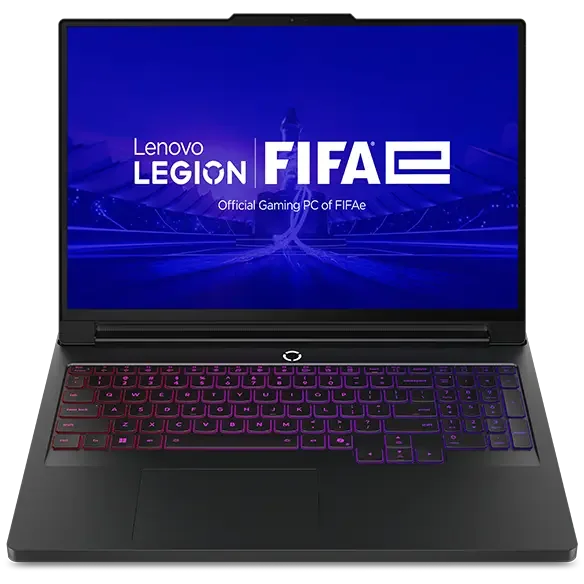
Airflow basics: desk surface, rear clearance, and room temp
Airflow is the foundation. Most gaming laptops pull cool air from the bottom and exhaust hot air out the sides or rear. If the bottom vents are blocked by a bed, couch, or even a soft desk mat, the fans have to spin faster to move the same amount of air, and temperatures climb anyway. Use a hard, flat surface and give the rear of the laptop some breathing room so exhaust is not bouncing off a wall or monitor stand.
Room temperature matters more than people expect. A warmer room means the laptop starts with warmer intake air, so it reaches higher internal temperatures sooner and ramps fans earlier. Even a few degrees can change how often fans surge. If you want quieter operation, keep the area around the laptop clear, avoid pushing it into a tight corner, and consider a simple rear lift (even a small stand) to improve intake airflow.
Performance profiles and fan curves in plain English
A performance profile is a preset that bundles power limits and fan behavior. Turbo modes usually raise CPU and GPU power limits and allow aggressive fan speeds. Quiet modes do the opposite. The trap is using a quiet profile while expecting the same fps as turbo. The laptop will hit temperature or power ceilings and then throttle, which can cause repeated fan ramping and uneven performance.
Some laptops let you adjust a fan curve, which is a map of fan speed versus temperature. A good curve avoids sudden jumps. Instead of trying to keep fans extremely low, aim for a smoother ramp that starts earlier but climbs less dramatically. That can sound quieter because it avoids the "whoosh" effect. If your laptop offers separate controls for CPU and GPU, prioritize keeping the GPU steady for gaming, because GPU swings often show up as visible stutter.
Frame caps, V-Sync, and why they can quiet a laptop
Unlimited frame rates are a common reason laptops get louder than necessary. If a game menu or a light scene runs at 300 fps, the GPU will happily burn power doing it, creating heat that forces fans up. A frame cap limits how hard the GPU works, which reduces heat and fan speed. The best cap is one your system can hold consistently. For a 144 Hz screen, that might be 120 or 141 fps depending on the game and your goals.
V-Sync is a setting that synchronizes frame output to the display refresh to reduce tearing. It can also act like a cap, but it may add input lag in some games. Many players prefer a manual frame cap for better control. If your game supports a "menu fps limit" or "background fps limit," turn it on. That single setting can cut noise dramatically during pauses, alt-tabbing, or when a launcher is open.
When a cooling pad helps and when it is just extra noise
A cooling pad is a stand with fans that pushes air toward the laptop's underside. It helps most when the laptop's bottom intake is restricted or when the laptop runs hot because it sits flat. A pad can also improve comfort by lowering surface temperatures on the keyboard deck. The best outcome is when the pad lets your laptop's internal fans run slower for the same temperatures.
A cooling pad is just extra noise if the laptop already has good clearance and the pad's fans do not line up with the intake vents. In that case, you may hear the pad plus the laptop fans, with little temperature improvement. If you try one, focus on airflow and positioning, not maximum pad fan speed. Often the quietest setup is a simple stand for clearance plus a sensible frame cap, not the loudest external fans.