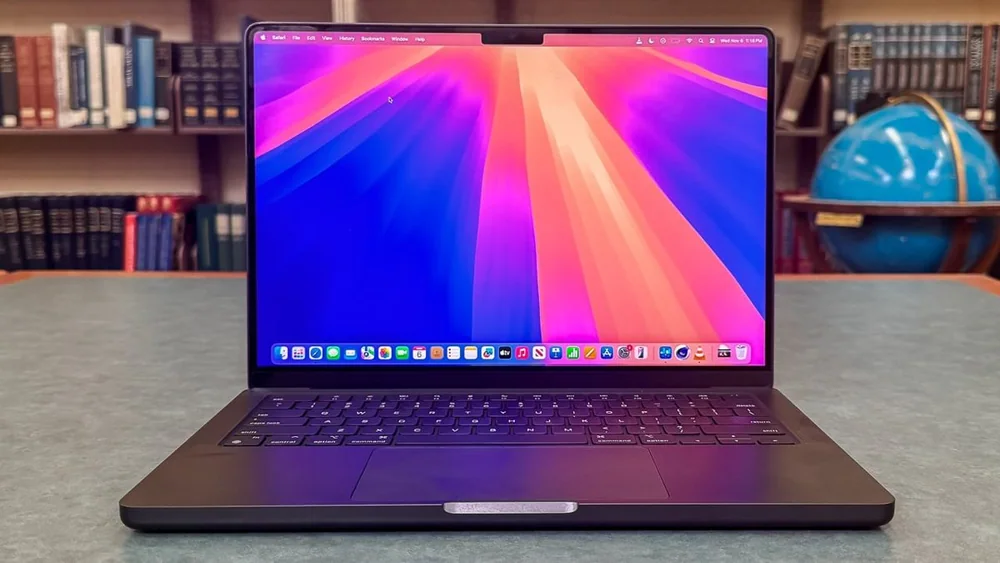
Laptop cooling and throttling: why fast specs can feel slow in long sessions
Published
Cooling design determines whether a laptop can hold its speed for long work sessions without getting loud or uncomfortably hot.
Laptop performance is not just about the CPU or GPU listed on the spec sheet. It is also about how long the laptop can keep those chips running fast before heat builds up. When a laptop cannot move heat out quickly enough, it protects itself by slowing down. That is why two laptops with similar specs can feel very different during a long export, a game, or a day of video calls. Cooling choices affect more than speed. They change fan noise, surface temperatures on the keyboard and palm rest, and even battery behavior because hot components often need more fan time and may run less efficiently. If you understand throttling and what causes it, you can buy a laptop that matches your workload and set it up so it stays comfortable and consistent.
Reading time: 8 minutesBest for: People who do long exports, gaming sessions, coding builds, or frequent video calls and want consistent performance without excessive fan noise.
What -throttling- means and when you will notice it (exports, games, video calls)
Throttling means the laptop reduces performance to control temperature and power. The CPU and GPU have target temperature ranges, and when heat builds faster than the cooling system can remove it, the system lowers clock speeds (how fast the chip runs) and sometimes limits power. The result is not usually a crash. It is a gradual slowdown that can make a laptop feel inconsistent, fast at first and then noticeably slower.
You notice throttling most in sustained work, not quick tasks. Video exports, 3D renders, large code compiles, and long gaming sessions are classic triggers because they keep the CPU or GPU loaded for minutes or hours. Video calls can also expose weak cooling because the laptop is doing steady work while the screen is on and the webcam is active. A common pattern is a fast first 2 to 5 minutes, then lower frame rates in games, longer remaining time in exports, or a laptop that suddenly gets louder while performance stops improving.
Cooling parts that change real performance: heat pipes, vapor chambers, fan size, and vent placement
Inside most laptops, heat moves from the CPU and GPU into a cooler assembly using heat pipes or a vapor chamber. Heat pipes are sealed tubes that move heat to the fins near the fans. A vapor chamber is a flatter plate that can spread heat across a larger area, which can help when both CPU and GPU are working at once. Neither is automatically better in every laptop, but bigger heat-moving surfaces and more fin area usually help sustained performance.
Fan size and vent placement matter because they determine how easily the laptop can pull in cool air and push out hot air. Larger fans can often move the same air at lower RPM, which can reduce noise. Vents on the bottom can be fine on a desk but struggle on a bed or couch. Rear or side exhaust can keep heat away from your hands, while exhaust that blows toward the display hinge can warm the area above the keyboard. The practical outcome is simple: better airflow and more cooling mass usually means steadier speed and less annoying fan behavior.
Clues in everyday use: palm rest heat, fan behavior, and performance that drops after 10 minutes
You can often feel a cooling limitation before you measure it. If the palm rest or the center of the keyboard gets hot during normal tasks, the laptop may be running close to its comfort limits under heavier loads. Warm is normal. Uncomfortable heat where your hands rest is a sign the chassis is absorbing more heat than the cooling system is moving out. Another clue is a laptop that becomes noticeably warmer even when it is plugged in and doing moderate work, like many browser tabs plus a video call.
Fan behavior is also revealing. A laptop that constantly ramps up and down tends to have less thermal headroom, so it is chasing temperatures instead of staying stable. If you see performance drop after about 10 minutes, that is a classic sign of sustained limits: the laptop boosts high at the start, then settles to a lower long-term speed once the internal heat soaks into the chassis. In games, this looks like frame rates that start strong and then sag. In exports, it looks like the progress bar slowing down after the first stretch.
Ownership tips: keeping vents clear, using a stand, power modes, and when repasting or cleaning matters
Start with airflow. Keep bottom vents clear, avoid soft surfaces that block intake, and consider a simple stand that lifts the rear edge so the laptop can breathe. Even a small lift can reduce heat buildup because fans can pull air more easily. If you use the laptop docked with an external monitor, opening the lid can sometimes improve airflow and reduce heat around the keyboard area, depending on the vent design.
Use power modes intentionally. Many laptops have modes like Quiet, Balanced, and Performance. Quiet often limits power to reduce fan noise, which can increase export times but keep the laptop comfortable. Performance can hold higher speeds longer but may be louder and warmer. Cleaning matters when dust builds up in the fins and fans, which reduces airflow and makes throttling more likely. Repasting (replacing the thermal paste between the chip and cooler) is usually a later-life fix for experienced hands or a repair shop. It can help if temperatures have worsened over years, but it is not a first step for a new laptop.
What this guide helps you understand
If your work lasts longer than a few minutes, buy and set up your laptop for sustained cooling, not peak boost numbers. Consistent airflow, sensible power modes, and a chassis that stays comfortable will do more for day-to-day satisfaction than a spec sheet that only looks fast on paper.
Check where the laptop pulls air in and exhausts it, then make sure your typical setup (desk, lap, couch, dock) will not block those vents.
Technique notes
A thin laptop can still be fast, but it is more likely to trade sustained speed for lower noise and lower weight. Decide which tradeoff you actually want before you pay for high-end CPU or GPU tiers.
Safety note: Unplug the laptop and let it cool before cleaning vents. If you open the bottom cover, use the right tools and avoid touching the battery or components unless you are comfortable with basic electronics handling.