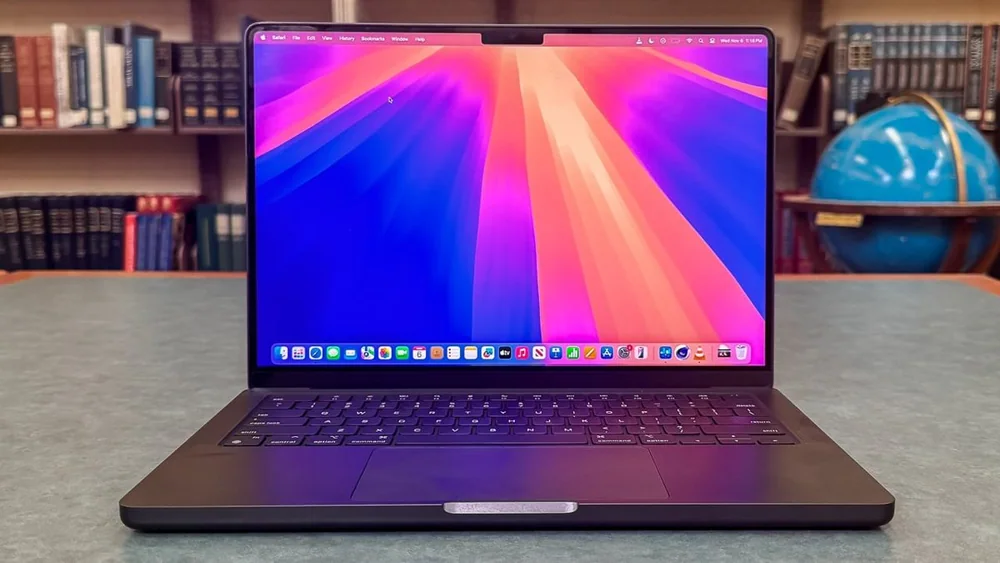
Laptop cleaning and care: keyboard grime, screen smudges, and vents
Published
Routine cleaning steps that keep your laptop looking good, running cooler, and feeling better to use.
Laptop cleaning is not just cosmetic. Oils on the keyboard and trackpad change how keys feel and how the cursor tracks. Dust in vents restricts airflow, which can raise temperatures and make fans louder. Screen smudges reduce contrast and make you crank brightness higher, which can shorten battery life during the day. The goal is safe, repeatable habits, not aggressive scrubbing. Laptops use thin coatings, tight tolerances, and delicate hinges. The wrong liquid, too much pressure, or cleaning while the device is powered can cause problems that are expensive to fix. A simple kit and a consistent routine usually beat occasional deep cleans.
Reading time: 8 minutesBest for: Anyone who wants a cleaner laptop, fewer heat issues, and less wear from daily handling
Screen cleaning without streaks or damage
Start dry and gentle. Use a clean microfiber cloth (the soft, tightly woven type used for glasses) to remove dust first. Dust is what causes micro-scratches when you rub a screen. Wipe in straight passes with light pressure, not tight circles. If the screen still has smudges, slightly dampen the cloth with water, not the screen itself. Spraying liquid directly can let it seep into the bezel or keyboard area.
Avoid harsh cleaners. Many laptop displays have coatings that can be damaged by strong solvents or abrasive wipes, leaving permanent haze or uneven shine. If you need more than water, use a cleaner specifically intended for screens and apply it to the cloth, not the panel. Let the screen dry before closing the lid. Closing a damp screen against the keyboard can transfer moisture and grime, and it can also leave new marks that look like -mystery stains- later.
Keyboard and trackpad cleaning basics
Keyboards collect skin oils, crumbs, and dust, especially around the most-used keys. Power down the laptop and unplug it before cleaning. Turn it upside down and gently tap to dislodge loose debris. Then use a soft brush or short bursts of air to move particles out from between keys. The goal is to lift debris out, not to blast it deeper into the mechanism.
For grime, use a lightly damp microfiber cloth to wipe keycaps and the palm rest. Sticky residue often comes from sugary drinks or hand lotion, and it can make keys feel slow or uneven. Trackpads are especially sensitive to oils. A clean trackpad improves cursor control and reduces the urge to press harder, which can wear the surface over time. If a key is sticking after cleaning, stop and reassess. Forcing it can break the scissor mechanism under the keycap.
Vents and dust: why airflow matters
Laptop cooling depends on airflow. Fans pull cool air in and push warm air out through vents. When dust builds up, the fan has to spin faster to move the same amount of air, which increases noise and can still leave the system running hotter. Higher heat can trigger thermal throttling, where the laptop slows down to protect itself. That is why a dusty laptop can feel -older- even if the specs are still fine.
Keep vents clear during daily use. Avoid using the laptop on soft surfaces that block intake vents, and do not store it in a bag while it is still warm. For routine maintenance, brush or gently blow dust away from vent openings. If you notice persistent overheating, sudden fan surges, or the bottom getting unusually hot, internal dust buildup may be significant. At that point, a professional cleaning can be safer than trying to open a thin laptop yourself, especially if the design uses delicate clips or hidden screws.
Battery health habits that are realistic
Battery health is about heat and time at high charge. Lithium-ion batteries age faster when they spend long periods hot or fully charged. You do not need perfect habits, but you can avoid the worst patterns. If you mostly work plugged in at a desk, see if your laptop offers a battery charge limit mode (sometimes called a conservation or optimized charging setting). This keeps the battery from sitting at 100 percent all day.
Also manage heat during charging. Charging while running heavy tasks can warm the battery area, especially on thin laptops. If you are exporting video or gaming, consider doing it plugged in with good airflow and a balanced power mode, not with the laptop buried in bedding. For storage, do not leave a laptop in a hot car or direct sun. If you will not use it for a while, storing it partially charged is generally easier on the battery than storing it full.
What this guide helps you understand
Gentle, regular cleaning protects the parts you touch and the airflow the laptop needs to stay cool. A clean screen and clear vents can improve daily comfort more than most settings tweaks.
Use a clean microfiber cloth and apply any liquid to the cloth, not directly to the laptop.
Technique notes
Wash microfiber cloths separately from linty fabrics and avoid fabric softener, which can leave streak-causing residue.
Safety note: Power down and unplug the laptop before cleaning. Keep liquids away from ports, speakers, and the keyboard area.